


A form editor built for business users
Build forms in clear tabs with question cards and a chat preview.
Forms collect information inside chats: appointment requests, registrations, feedback. The Form editor has been rebuilt around the way teams build forms, so a business user can create and tune one without developer help. Your existing forms and their results open as they are.
What's new#
Five tabs that follow the job#
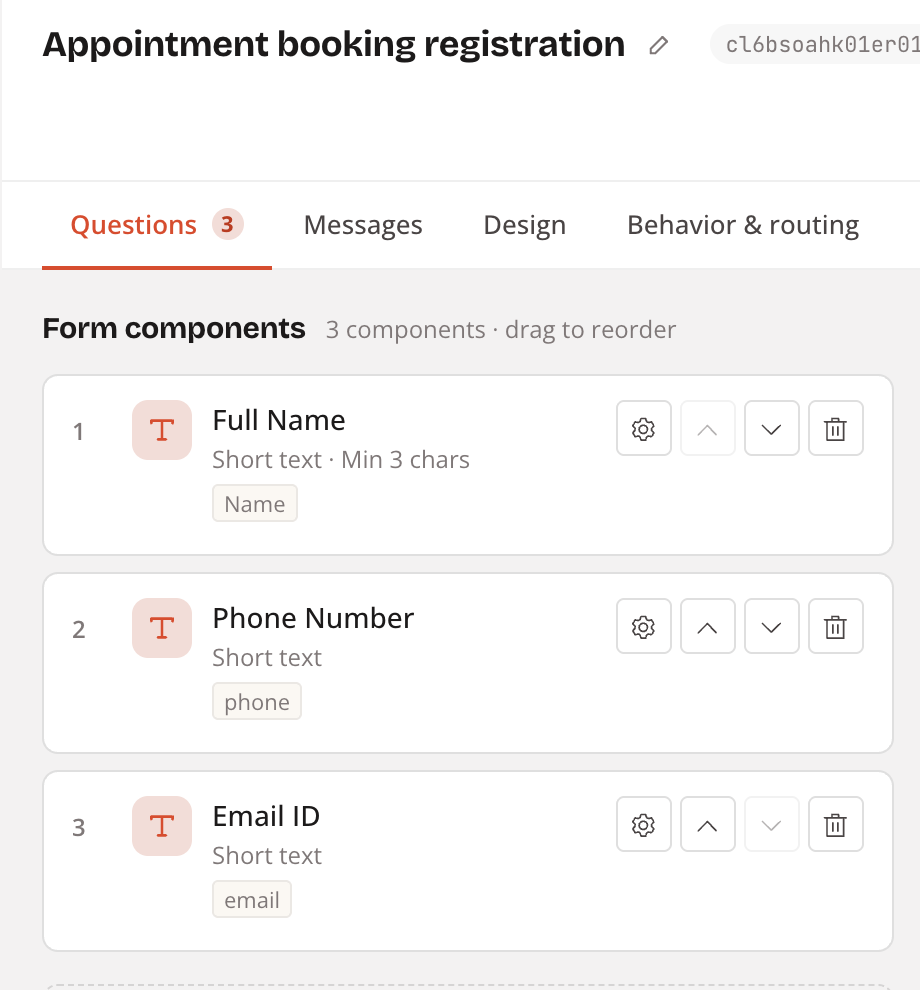
The tabs are Questions, Messages, Design, Behavior & routing and Advanced. On Questions, each question is a numbered card that shows its type, any rules such as "Min 3 chars", whether it is required and the field name its answers are stored under. Move a card with its up and down arrows or by dragging, edit it with the gear, or delete it with the bin.
Twelve question types#
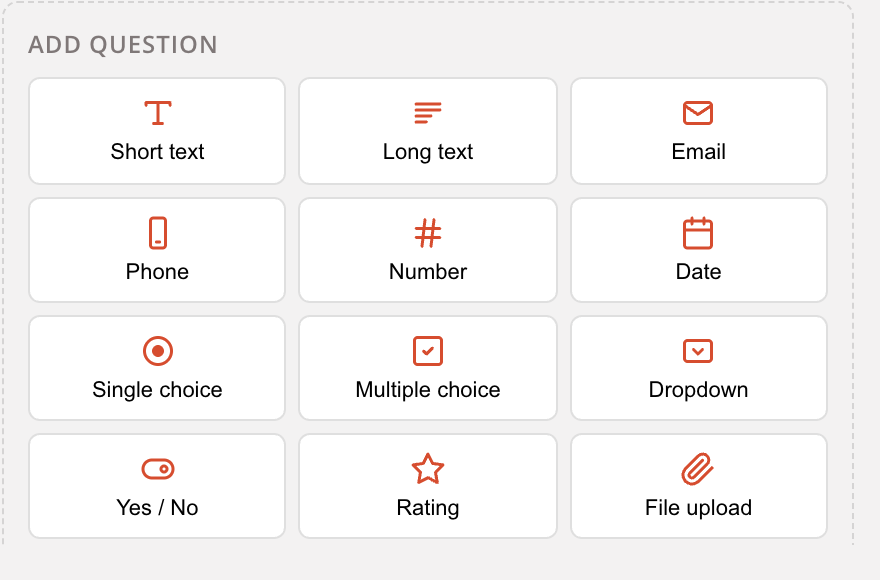
Add a question from the palette: Short text, Long text, Email, Phone, Number, Date, Single choice, Multiple choice, Dropdown, Yes / No, Rating and File upload. On a choice question you can also add a follow-up question that is asked only for a particular answer.
Edit one question at a time#
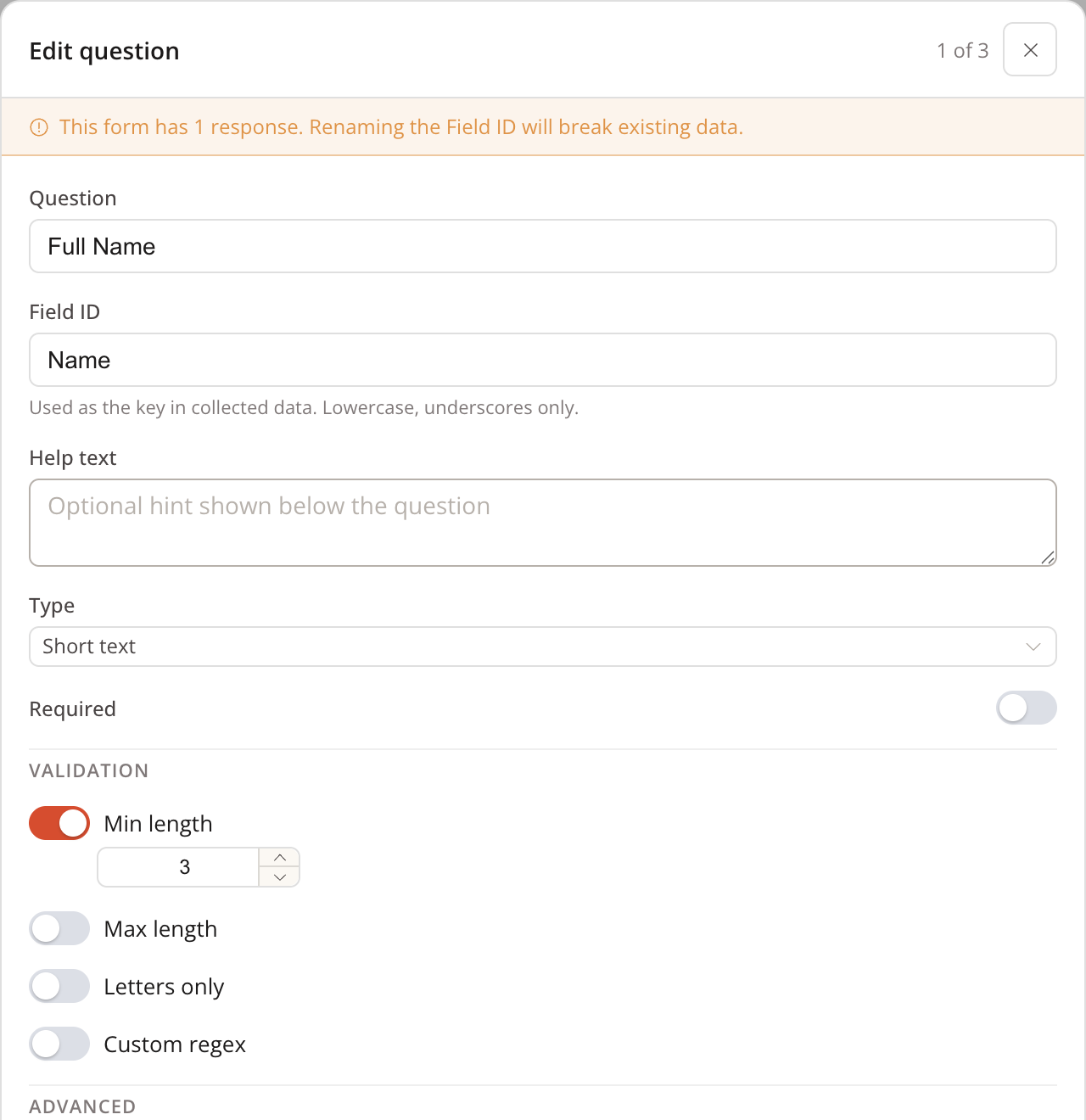
The gear opens a focused window for the question. Set the question text, a field ID (the key your results are stored under), help text, the type and a Required switch. Validation offers Min length, Max length, Letters only and Custom regex, and "Error message" lets you word what the customer sees when a check fails. Previous and Next move through the questions. If the form already has responses, a warning reminds you that renaming a field ID will break existing data.
Say it in your own words#
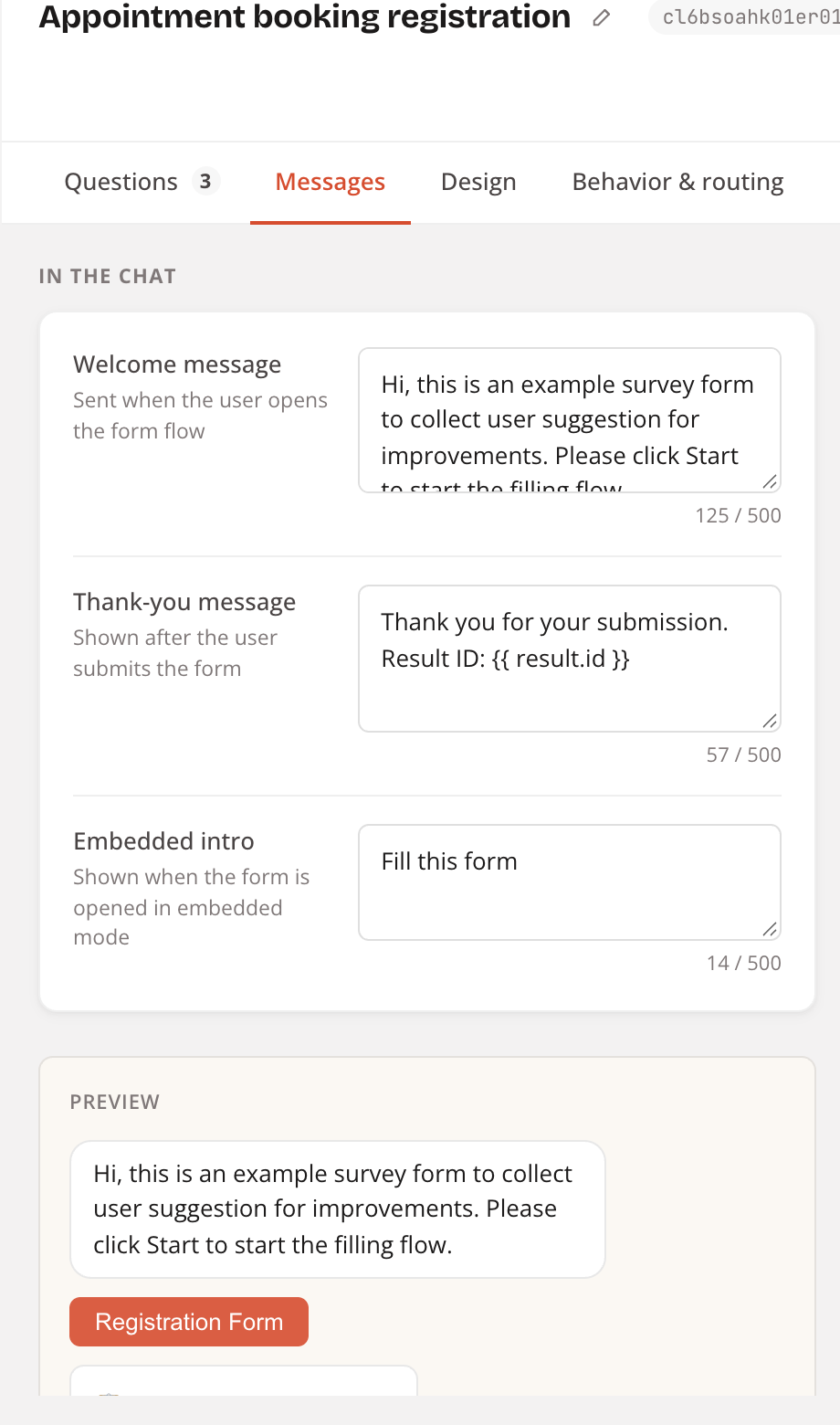
Messages holds the welcome message, the thank-you message and the intro shown when the form is embedded, each as plain text of up to 500 characters, with a chat preview underneath. The preview on the right of the editor shows the last saved version of the form. Design sets the colours for question text, the focus highlight, errors, locked fields and buttons (with their hover colours), and the font. Behavior & routing connects the form to your bot: "Generate chatbot steps" links it to a chatbot flow, and the routing callbacks choose what happens After submitted, After update submitted and After cancelled.
Edit safely#
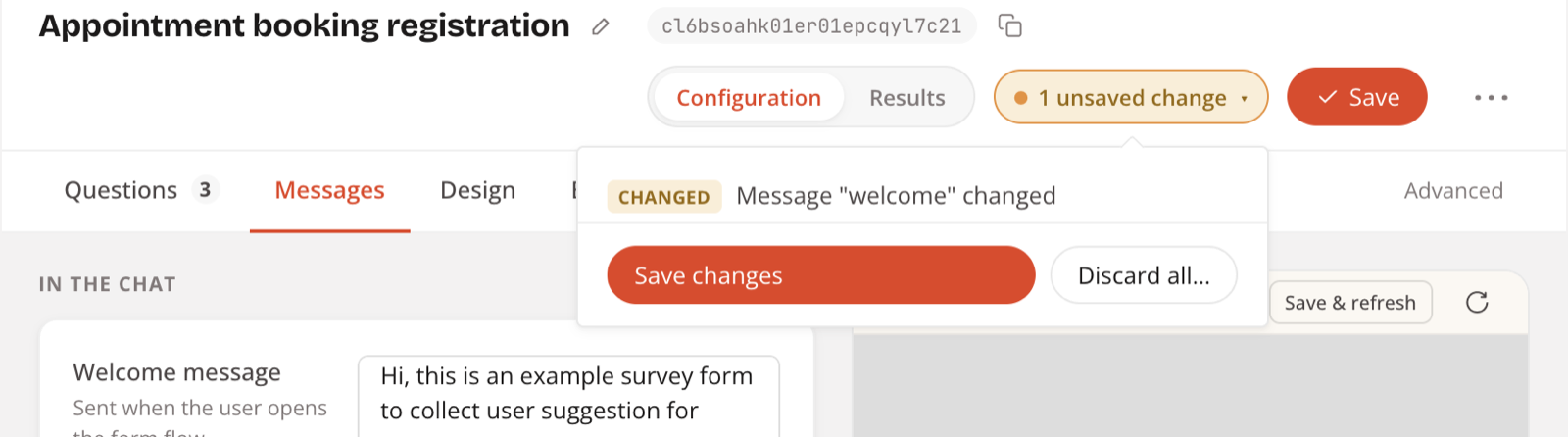
Changes stay in the editor until you save. A pill at the top counts them. Select it to see what changed, then choose Save changes or Discard all. If you try to leave with unsaved changes, the editor asks first.
Results at a glance#
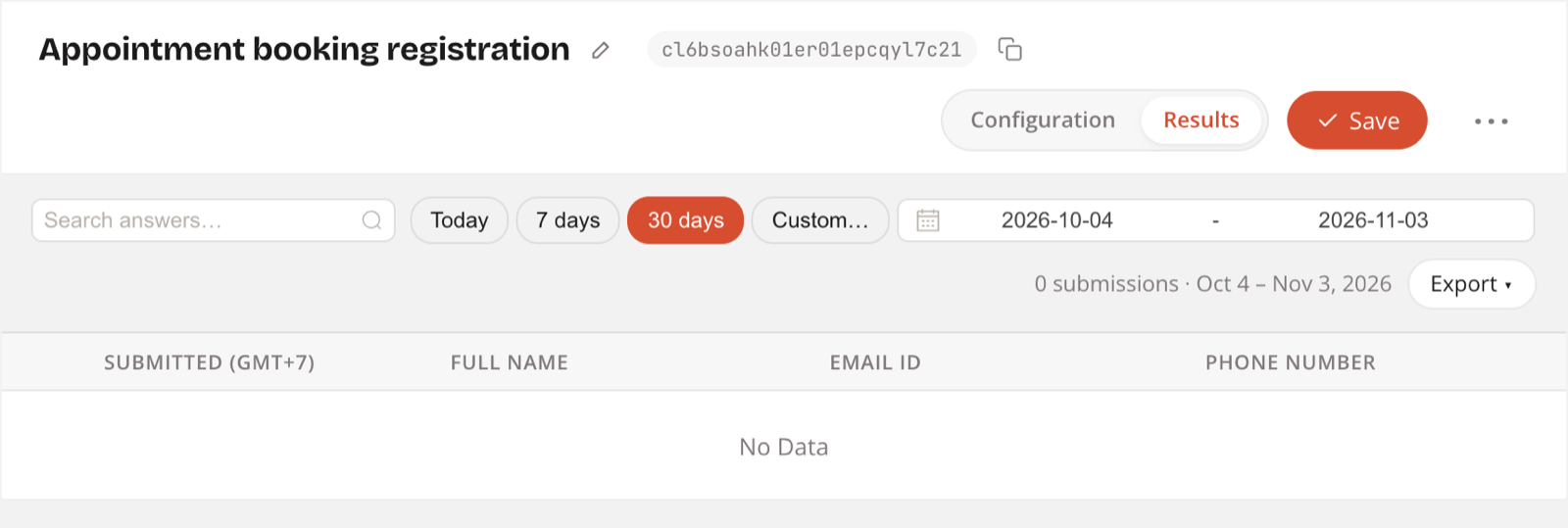
Results opens on the last 30 days, with one column per question. Switch to Today, 7 days or a custom range, search the answers, and use Export to download an Excel file (.xlsx) for the range you chose or for all time.
For developers#
Advanced holds the form ID with a Copy button, a description for your team, CAT-IRT mode for adaptive scoring, the raw JSON of the options and fields, scoring, custom validation and Custom CSS.
How to use it#
- Open Editor, then Form. Choose a form in the list or select Create.
- On Questions, pick a type from the palette, then use the gear to set the text, field ID and validation.
- Reorder the cards with the arrows or by dragging.
- On Messages, write the welcome and thank-you messages.
- On Design, set the colours and font.
- On Behavior & routing, choose where the chat continues after the form.
- Check the unsaved changes pill, then select Save.
- Open Results to see submissions and use Export for a spreadsheet.
Good to know#
- The new Form editor is part of the Rezonate Theme. In Rezonate UI, Form keeps the earlier editor.
- Existing forms open in the new editor as they are, and their results stay where they were.
- Results open on the last 30 days. Choose a wider range or "All time" in Export to get older submissions.
- Advanced is meant for developers. Most forms never need it.
How to turn it on: Switch to the Rezonate Theme (Settings > System > "Theme Color"), then open Editor > Form.