

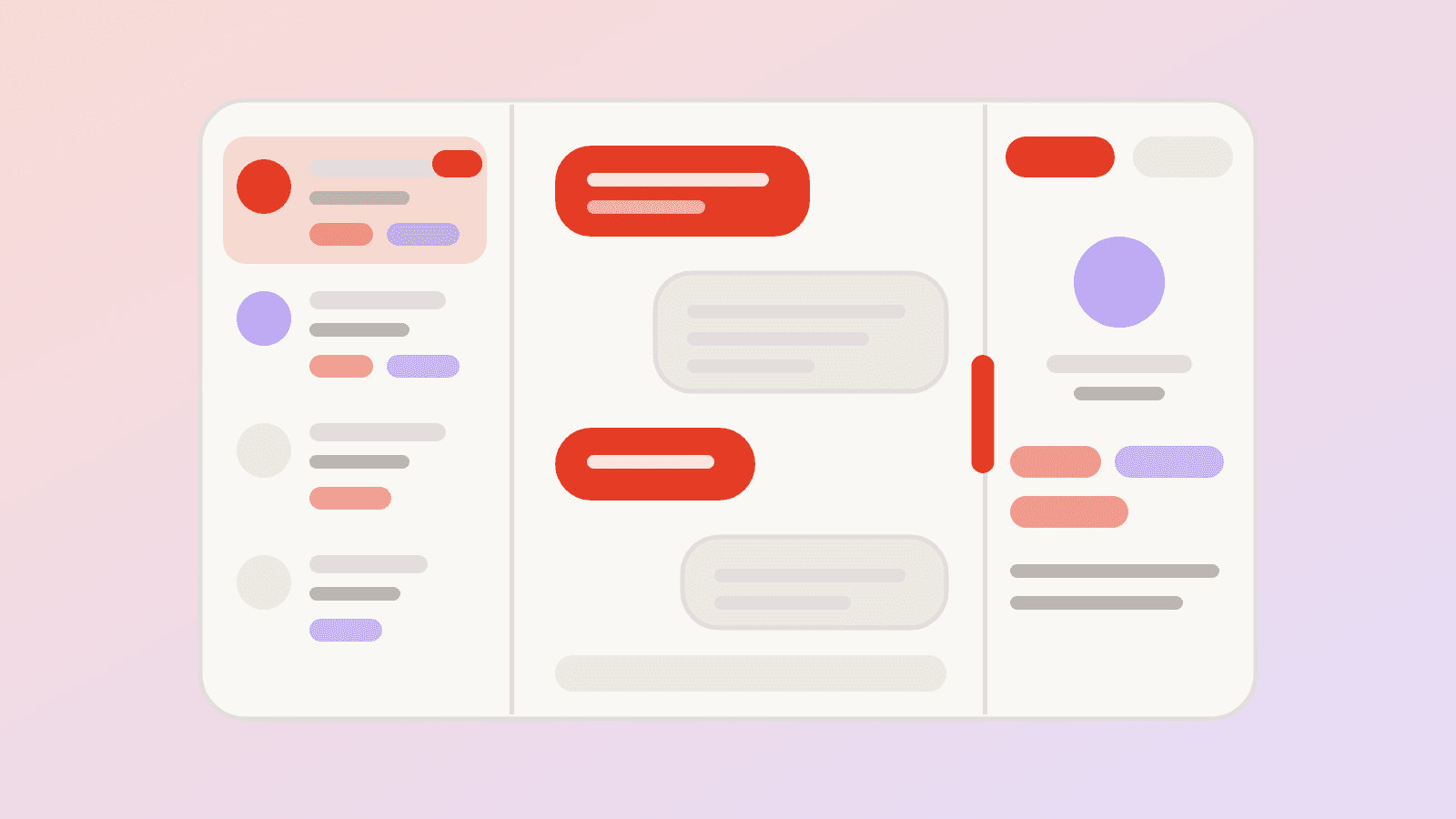
A redesigned Live Chat for agents
Channel tags, a resizable side panel and a tidier filter pop-over.
Live Chat is where agents spend the day, so small frictions add up: not knowing where a chat came from, losing the conversation behind pop-up windows, hunting for a chat from last week. In the Rezonate Theme, Live Chat is reorganised around the conversation, with the context you need beside it.
What's new#
See what each chat is at a glance#
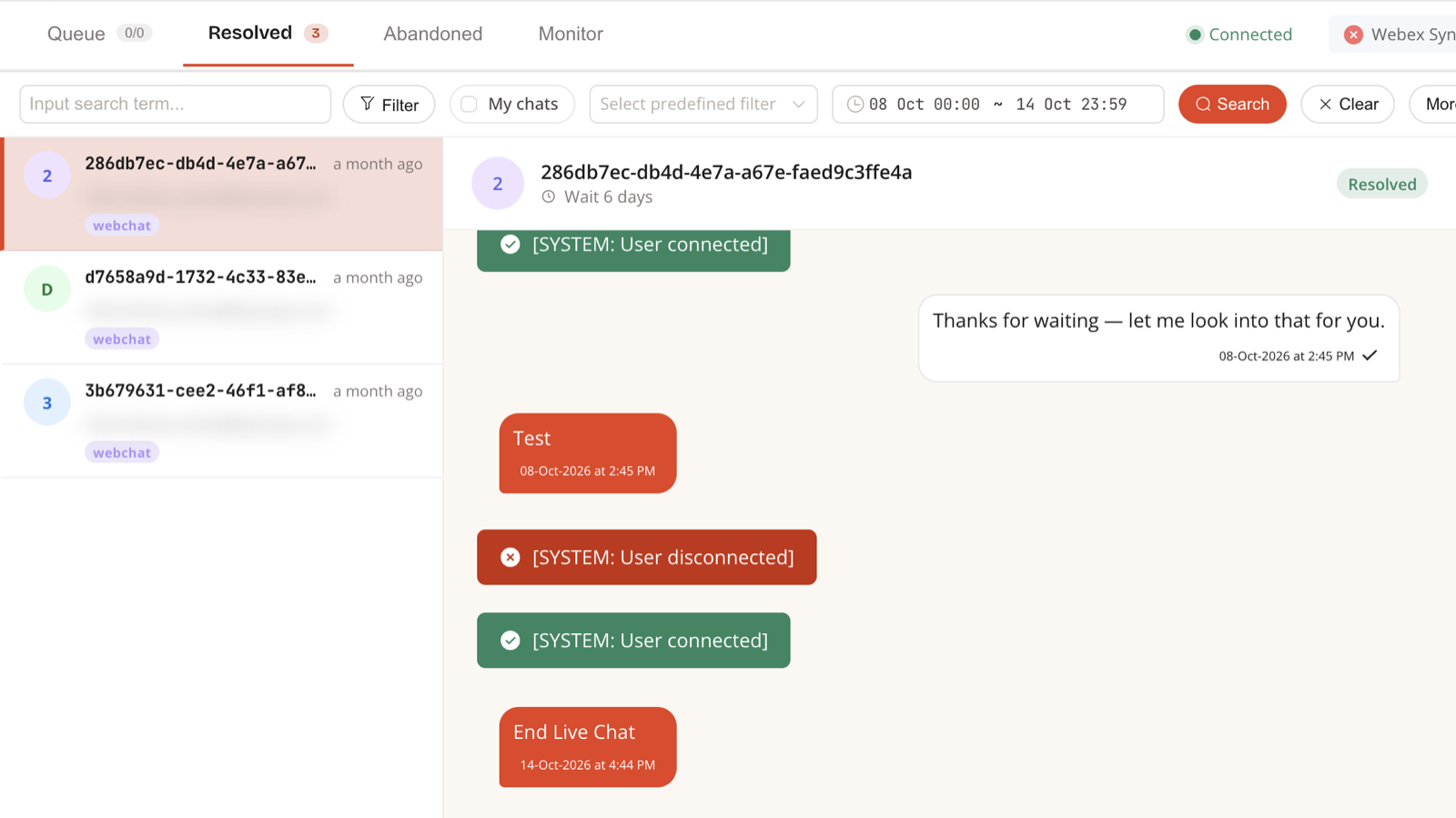
Four tabs sit above the list: Queue, Resolved, Abandoned and Monitor, each with a count. Every conversation shows an avatar, its session ID, how long ago it was active, the agent who attended it and a tag for the channel it came from, such as webchat. The top bar shows whether you are connected, how many agents are online and your own status.
Read the conversation faster#
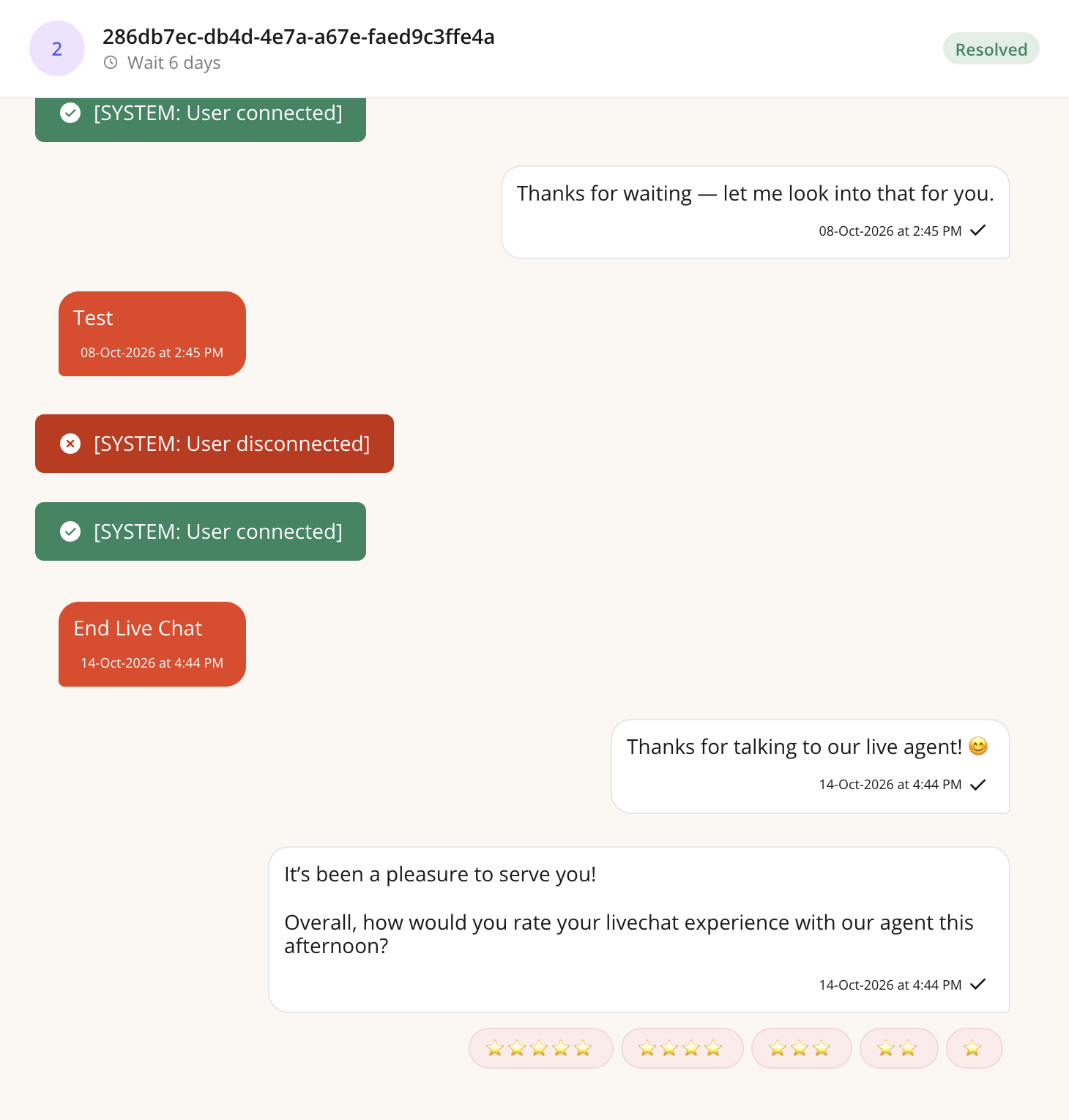
Customer messages appear in the brand colour on the left. Agent replies sit in neutral cards on the right, the other way round from many chat apps. System events, such as a customer connecting or disconnecting, appear as green and red bars. A badge in the conversation header tells you what you are reading: Live (in Monitor), Resolved or Abandoned. In a long conversation, select "Show earlier messages" to load more.
Keep context beside the chat#
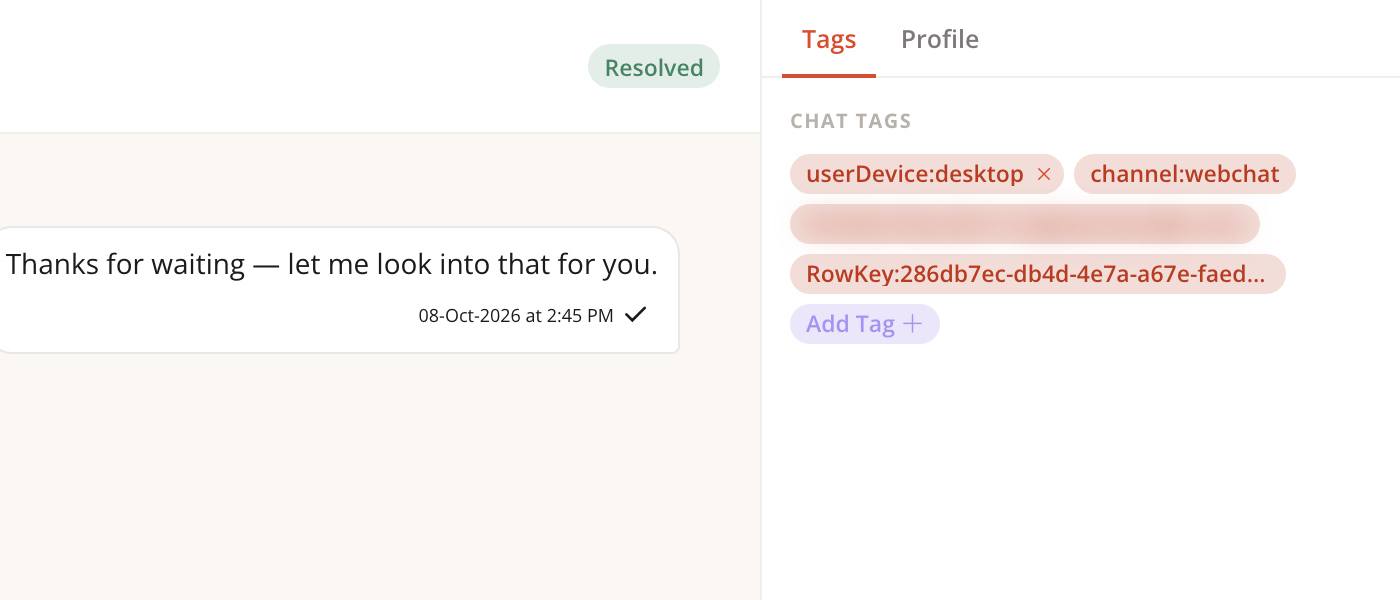
The side panel has two tabs and no extra pop-up windows. "Tags" lists the chat's tags, such as the channel and the device, and "Add Tag" lets you add your own. "Profile" holds the customer details form.
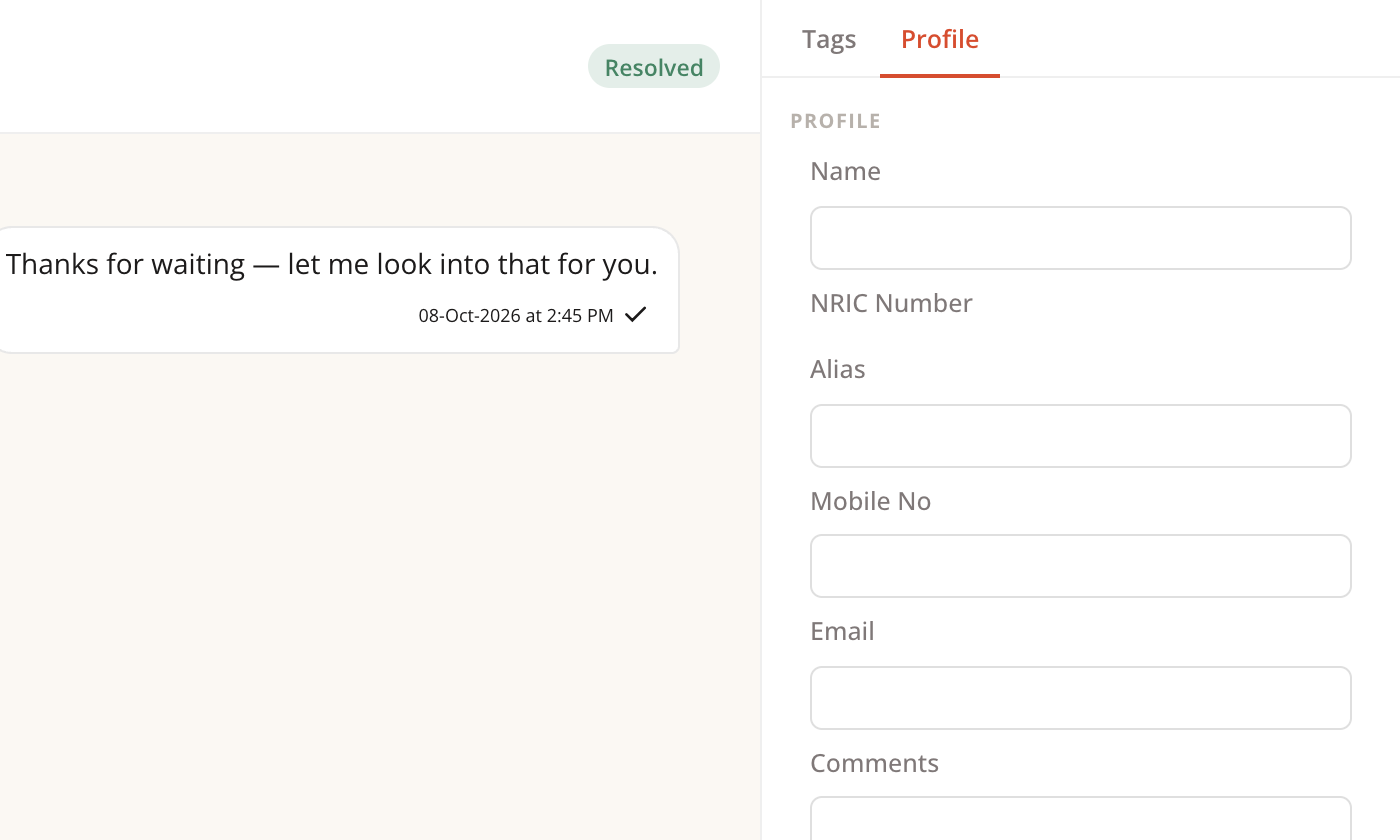
Drag the divider to make the panel narrower or wider, between 260 and 460 pixels. Live Chat remembers your size in the browser you use.
Find the right chat#
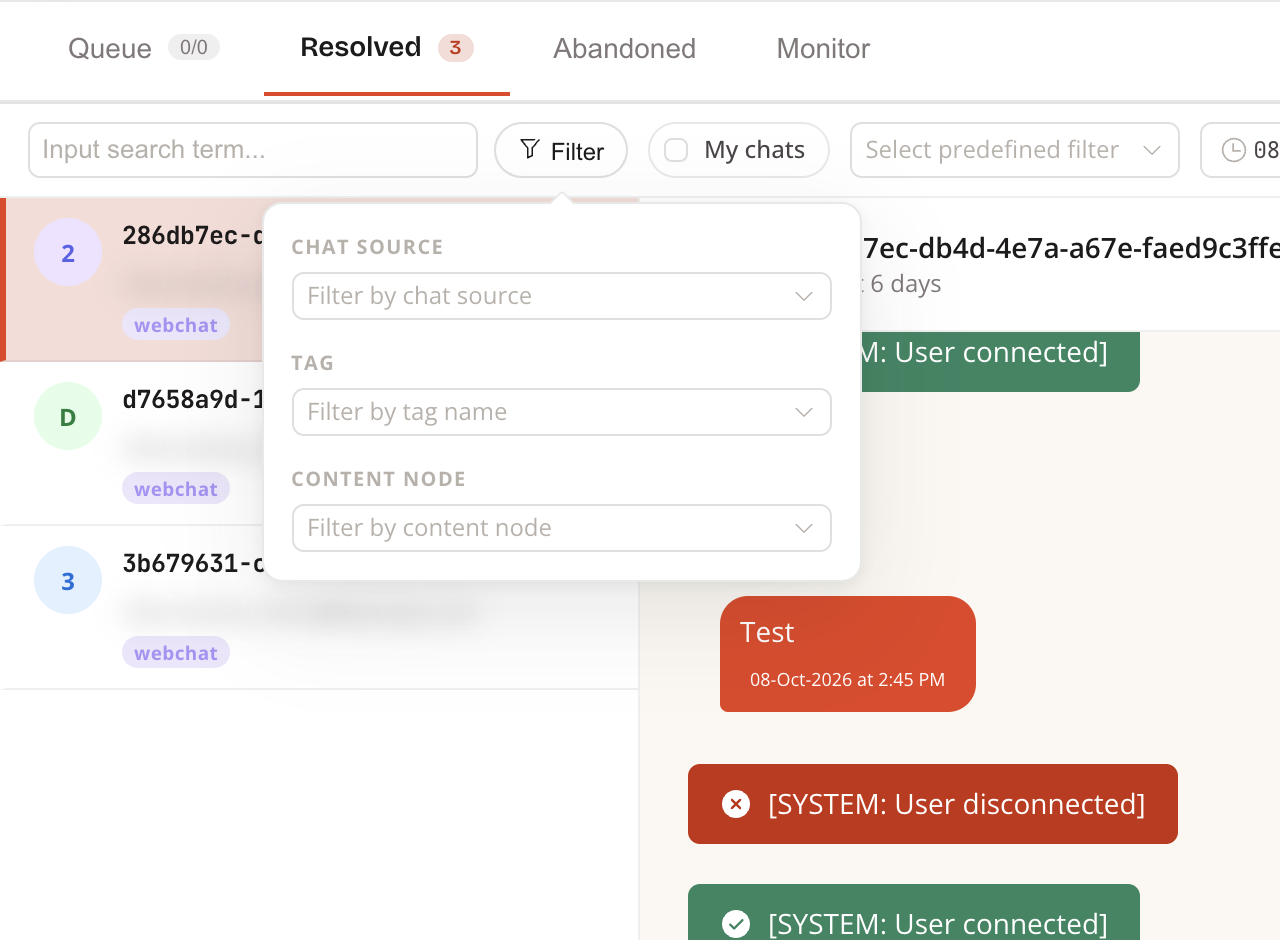
Each tab has a search box and a "Filter" button. The pop-over narrows the list by chat source, tag or content node. On the Resolved tab you can also tick "My chats", choose a predefined filter and set a date range.
Room on smaller screens#
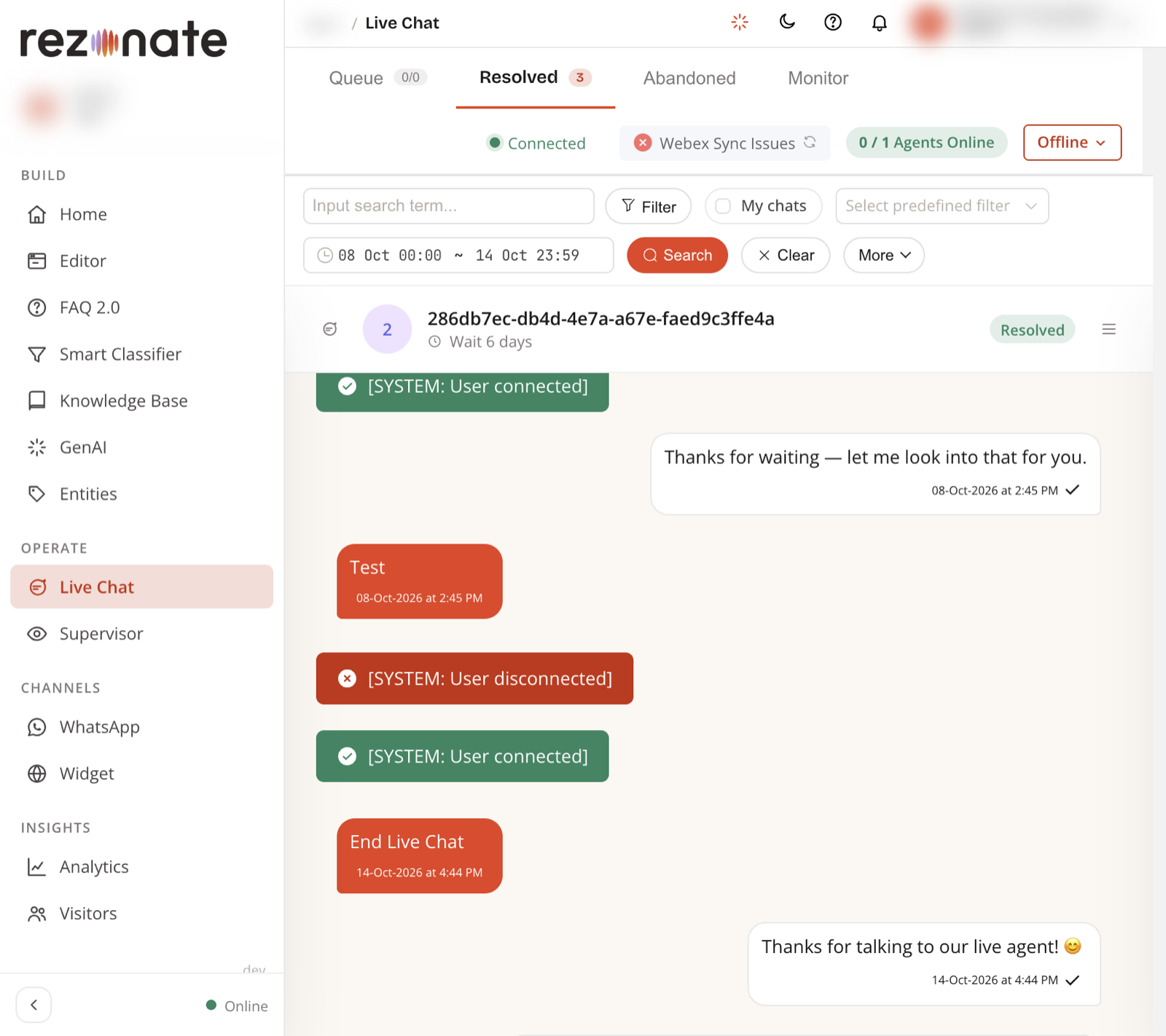
When the Live Chat area gets narrow, the side panel and then the chat list fold away, and buttons in the conversation header bring them back. The conversation keeps the room on a laptop or a tablet.
How to use it#
- Open Live Chat from the OPERATE group in the sidebar.
- Choose Queue, Resolved, Abandoned or Monitor.
- Select a conversation in the list.
- Open Tags or Profile in the panel on the right. Drag the divider to resize it.
- Select Filter to narrow the list. On Resolved, set the date range and select Search.
- On a narrow screen, use the buttons in the conversation header to show the list or the panel.
Good to know#
- The new Live Chat is part of the Rezonate Theme. In Rezonate UI, Live Chat keeps its previous layout.
- The panel width is stored in your browser, not in your account.
- Searches on Resolved and Abandoned cover up to 14 days at a time.
- Your existing conversations appear in the new screen as they are. Only the screen is new.
How to turn it on: Switch to the Rezonate Theme (Settings > System > "Theme Color"), then open Live Chat.