

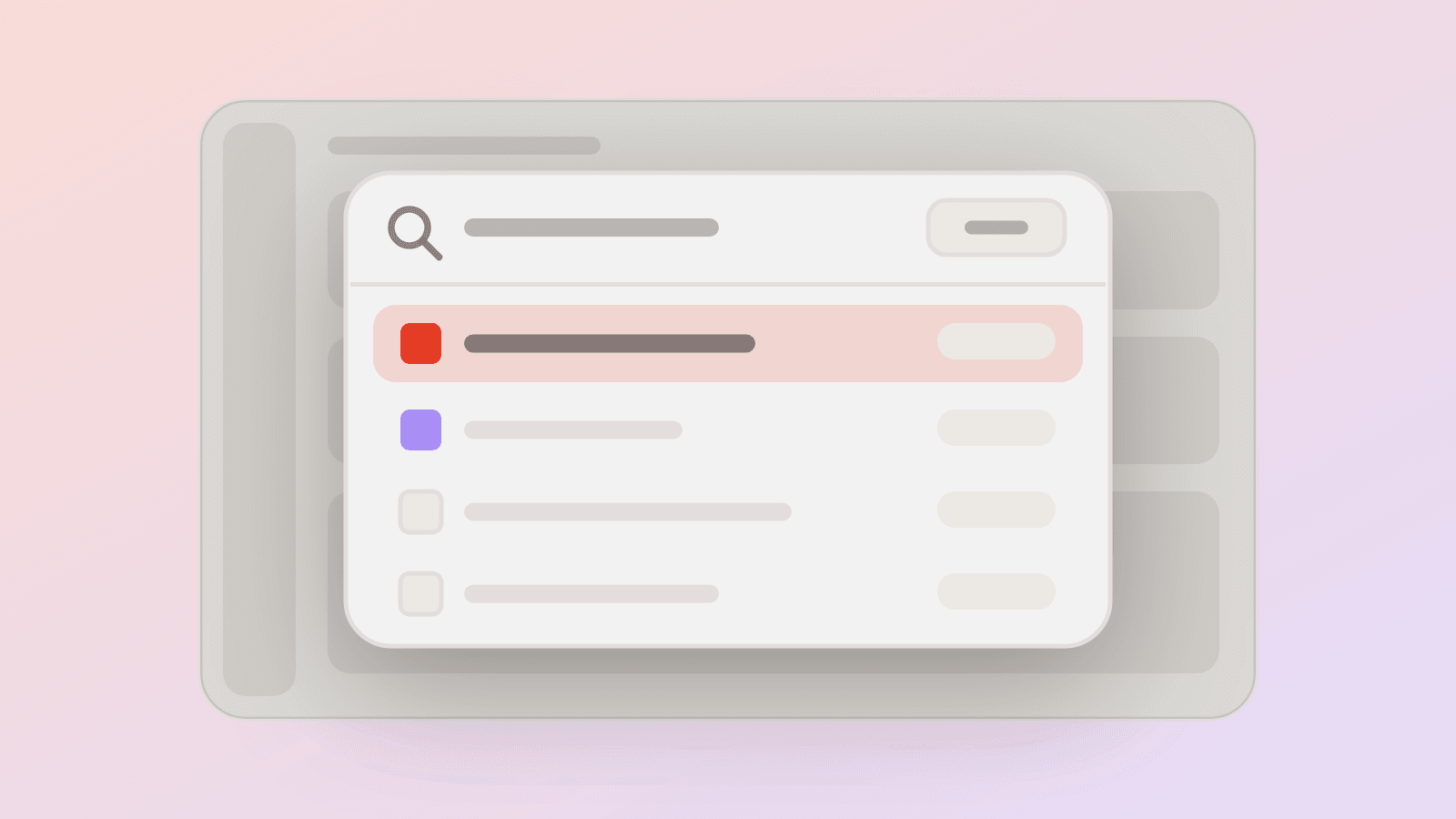
Search your whole bot with Cmd+K
Press Cmd+K (Ctrl+K on Windows) to search your bot and jump to any result.
Finding the one step, trigger or setting you built months ago used to mean browsing through screens. Now you can press Cmd+K on a Mac or Ctrl+K on Windows from any screen, type a few letters and go straight to it.
What's new#
One box, on any screen#
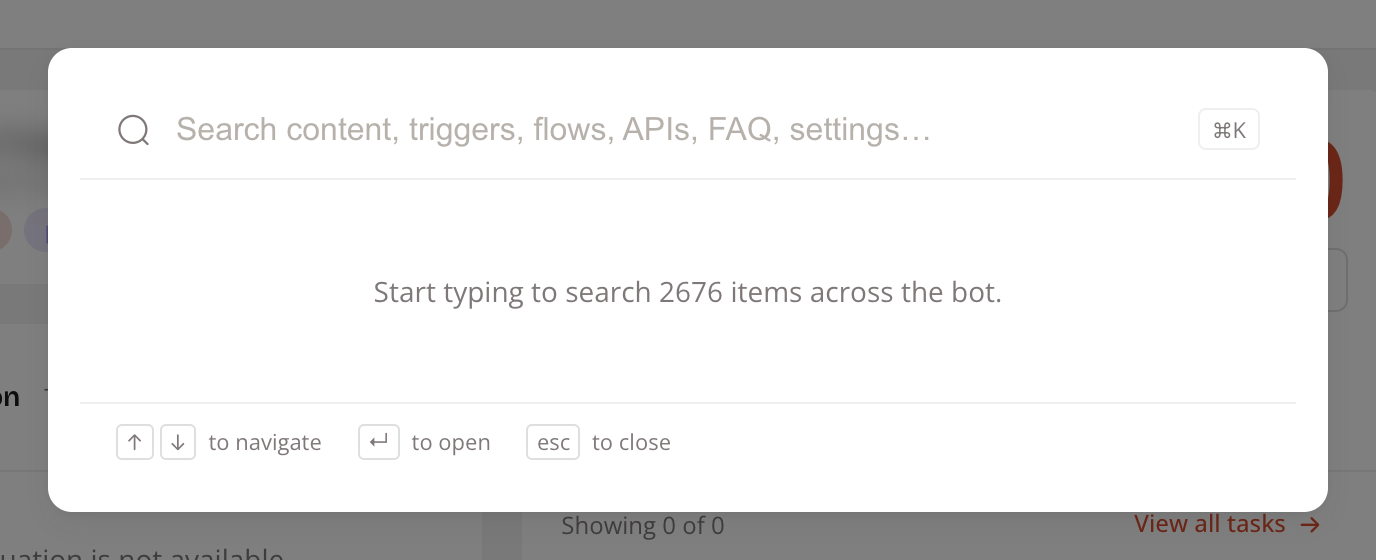
The shortcut opens a search box on top of whatever you are doing. It tells you how many items it can search across your bot, and it shows the keys: the up and down arrows to move, Enter to open and Esc to close.
Results grouped by kind#
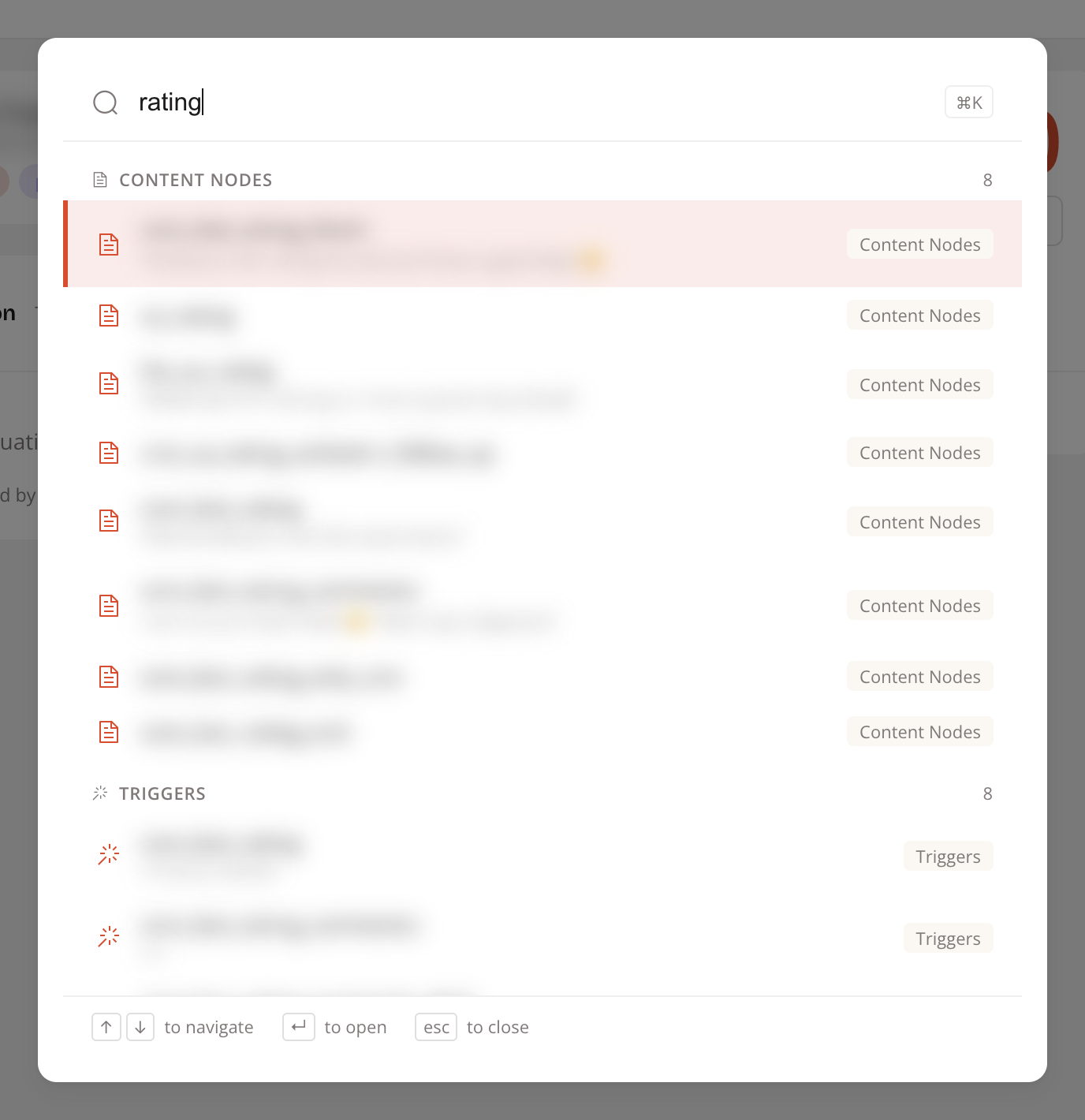
As you type, results appear in groups, each with a count and a tag: Content Nodes, Triggers, Flows, API Integrations, Forms, Entities, Web Pages, GenAI Personas and Settings. A group only appears when something matches. Each result shows its name and a line of its text, so you can tell similar items apart.
Land on the right item#
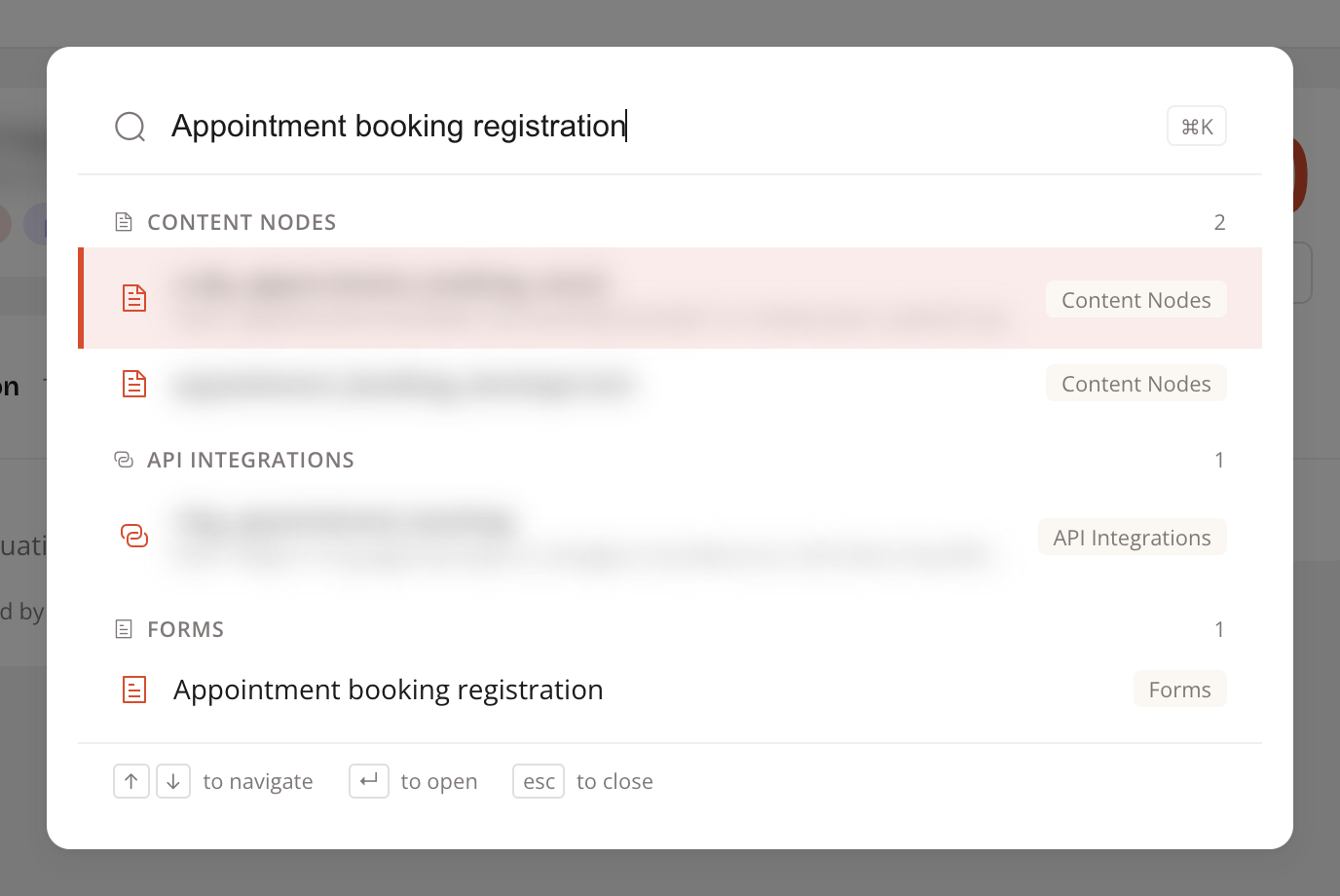
Choose a result and the right screen opens with that item selected. Search for the name of a form, for example, and choose the Forms result to open that form in Editor > Form. The address in the browser points to the item, so you can copy it and send it to a teammate.
Two other ways in#
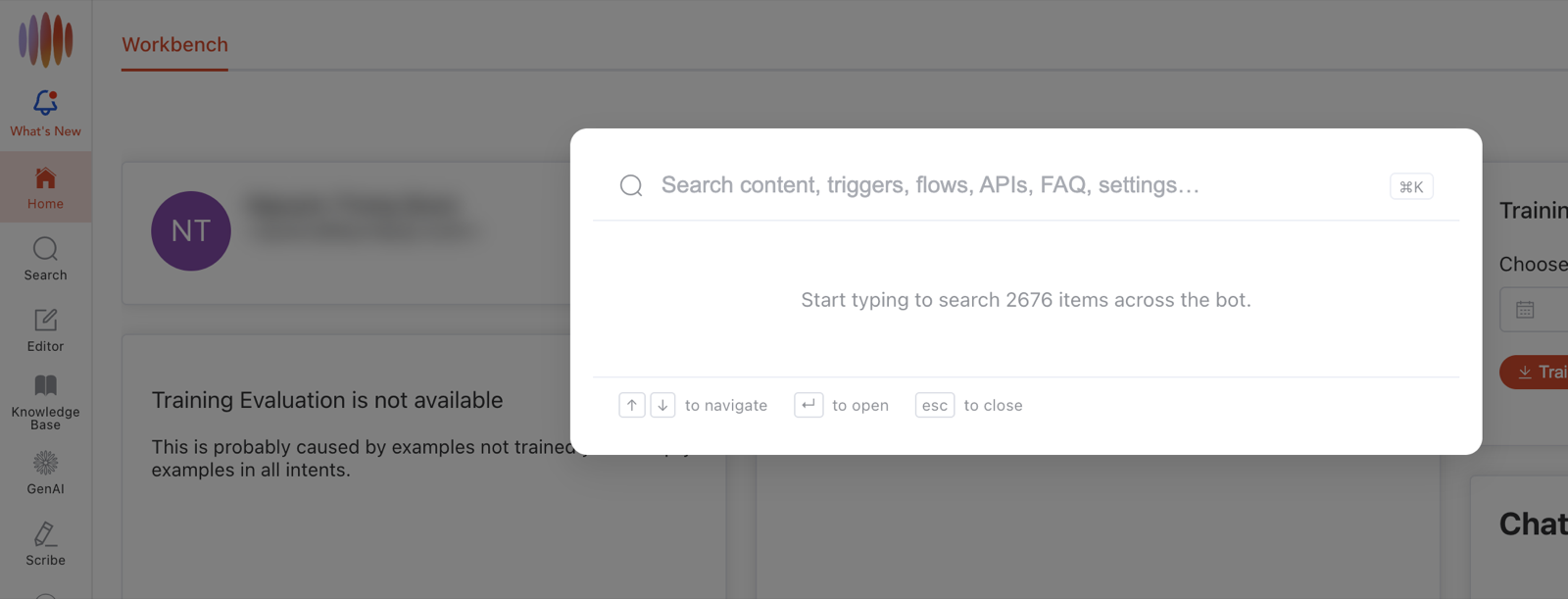
In Rezonate UI, select Search in the side menu to open the same box. In the Rezonate Theme, use the search button at the top of Home. The keyboard shortcut works in both.
How to use it#
- Press Cmd+K (Mac) or Ctrl+K (Windows) on any screen. You can also select Search in Rezonate UI, or the search button on Home in the Rezonate Theme.
- Type part of a name, or a phrase from a message.
- Move through the results with the up and down arrow keys.
- Press Enter, or select a result, to open it.
- Copy the browser address to share the exact item.
- Press Esc to close the box.
Good to know#
- The search works in both Rezonate UI and Rezonate Theme. There is nothing to switch on.
- The first time you open it in a session, it loads the list of items for a few seconds before you can type.
- It looks at names and at the text inside items, so a bot with a lot of content returns many results. Type a more specific word to narrow them down.
- Closing the box with Esc leaves you on the screen you were on.
What you need to do: Nothing. It works in both Rezonate UI and Rezonate Theme.