

See your whole bot on one flowchart
A new tab that maps how your steps connect and flags broken links.
Until now, understanding how your bot moves a customer from one step to the next meant opening steps one by one. The new Flowchart tab draws those connections, so you can follow a journey from end to end, spot a link that goes nowhere and jump to the step that needs fixing.
What's new#
The journey on one page#
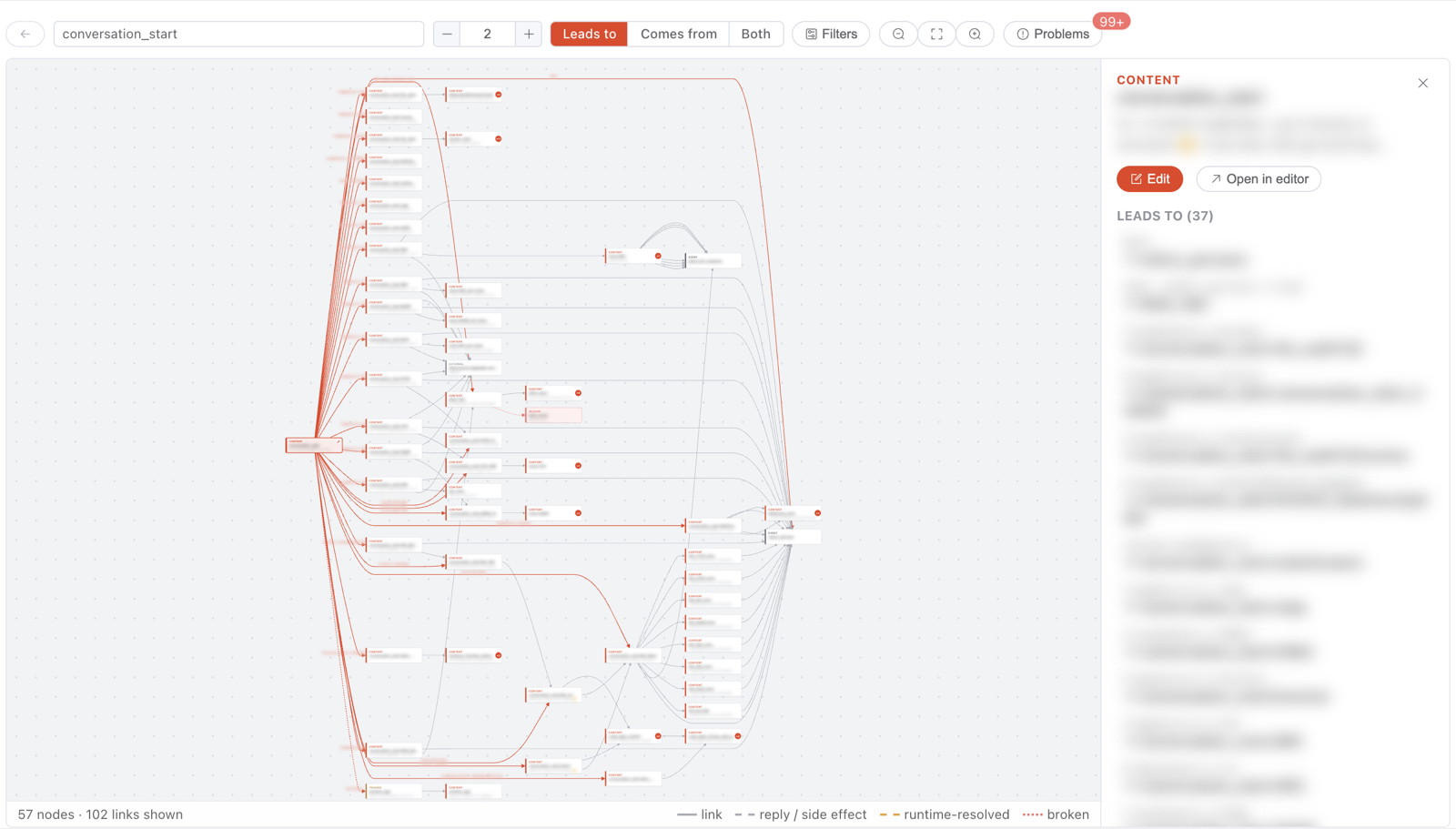
Open Editor > Flowchart. Each box is a step and each line shows where one step leads to another. The chart maps content steps and their variations, triggers, FAQ intents, integration calls, flows and the persistent menu. A line at the bottom says how much you are looking at, for example "57 nodes · 102 links shown", with a legend for the four kinds of line: link, reply / side effect, runtime-resolved and broken.
Choose how much to see#
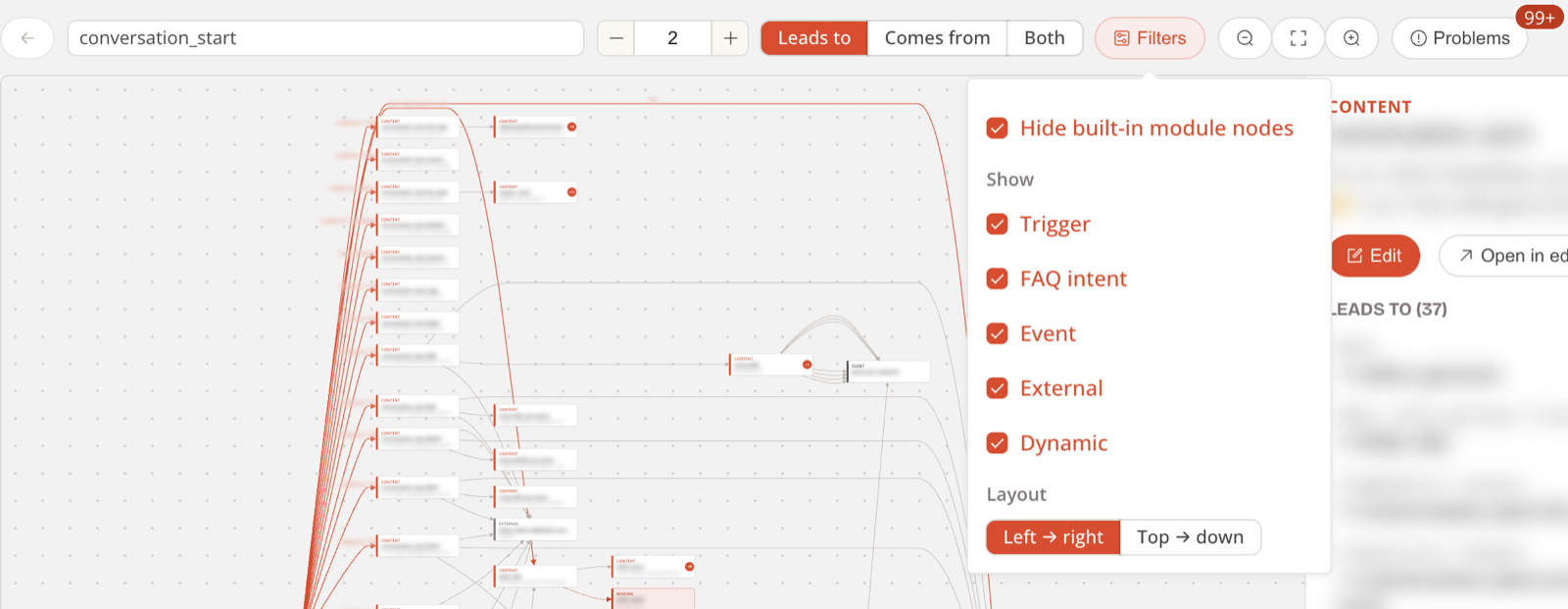
A bot can have thousands of steps, so the chart starts from one of them. Type a step in the start box, set how many links to follow, and choose "Leads to", "Comes from" or "Both". Filters lets you hide built-in module nodes, choose which kinds to show (Trigger, FAQ intent, Event, External and Dynamic) and switch the layout between Left → right and Top → down. The zoom buttons zoom out, fit the chart to the screen and zoom in. The chart shows up to 150 steps at a time, and badges mark where it continues.
Spot problems before customers do#
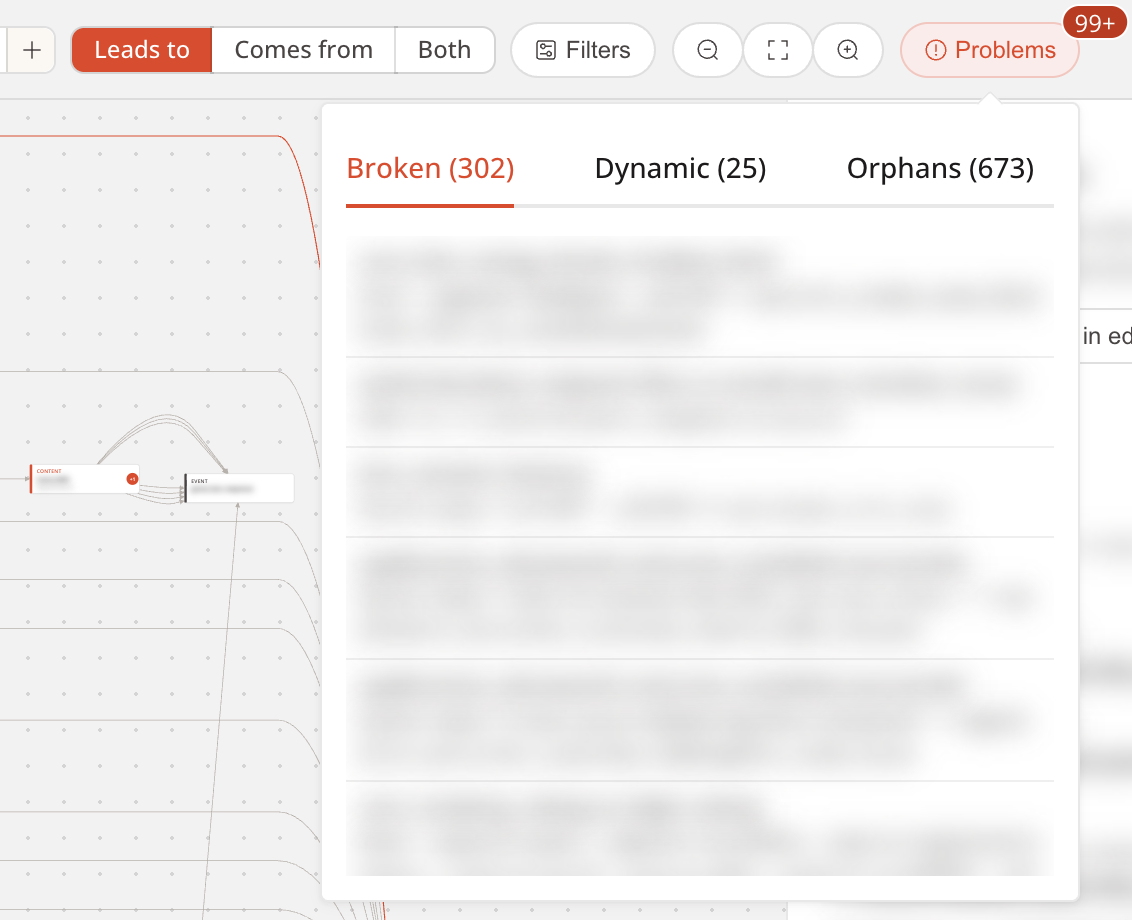
Select Problems and open one of three tabs, each with a count. "Broken" lists links that point to something that does not exist. "Dynamic" lists links that are only worked out while the bot is running. "Orphans" lists content that nothing links to. It works as a link checker for the whole bot.
Click through and fix#
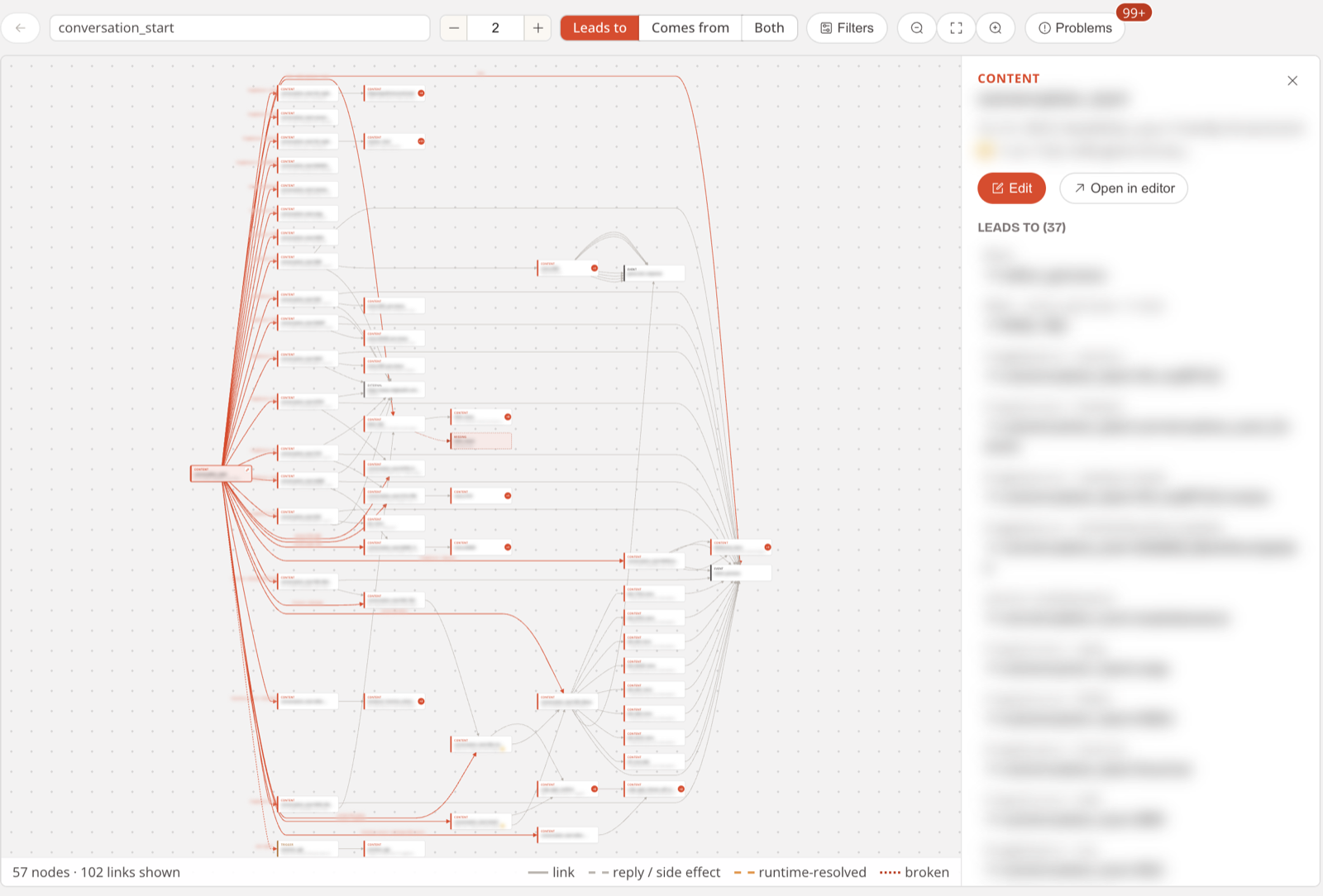
Select a step to see its details on the right: the kind of step, its text, how many steps it leads to, and the buttons Edit and Open in editor. Edit opens the regular editor in a window over the chart, and your changes show in the chart straight away. If you close that window with unsaved edits, you are asked first. From a content step in the editor, the "View in flowchart" button brings you back to the chart.
How to use it#
- Open Editor, then Flowchart.
- Type the step you want to start from.
- Set how many links to follow, and choose Leads to, Comes from or Both.
- Open Filters to hide the kinds of step you do not need.
- Select Problems and work through Broken, Dynamic and Orphans.
- Select a step, then choose Edit or Open in editor.
Good to know#
- The Flowchart works in both Rezonate UI and Rezonate Theme. There is nothing to switch on.
- The chart is built from what is open in the editor, so it also shows edits you have not saved yet.
- The address in the browser carries the step you started from, so you can share a view with a teammate.
- For a very large bot, start from one step and keep the depth low or use Filters. The chart stops at 150 steps.
What you need to do: Nothing. Open Editor > "Flowchart". It works in both Rezonate UI and Rezonate Theme.