

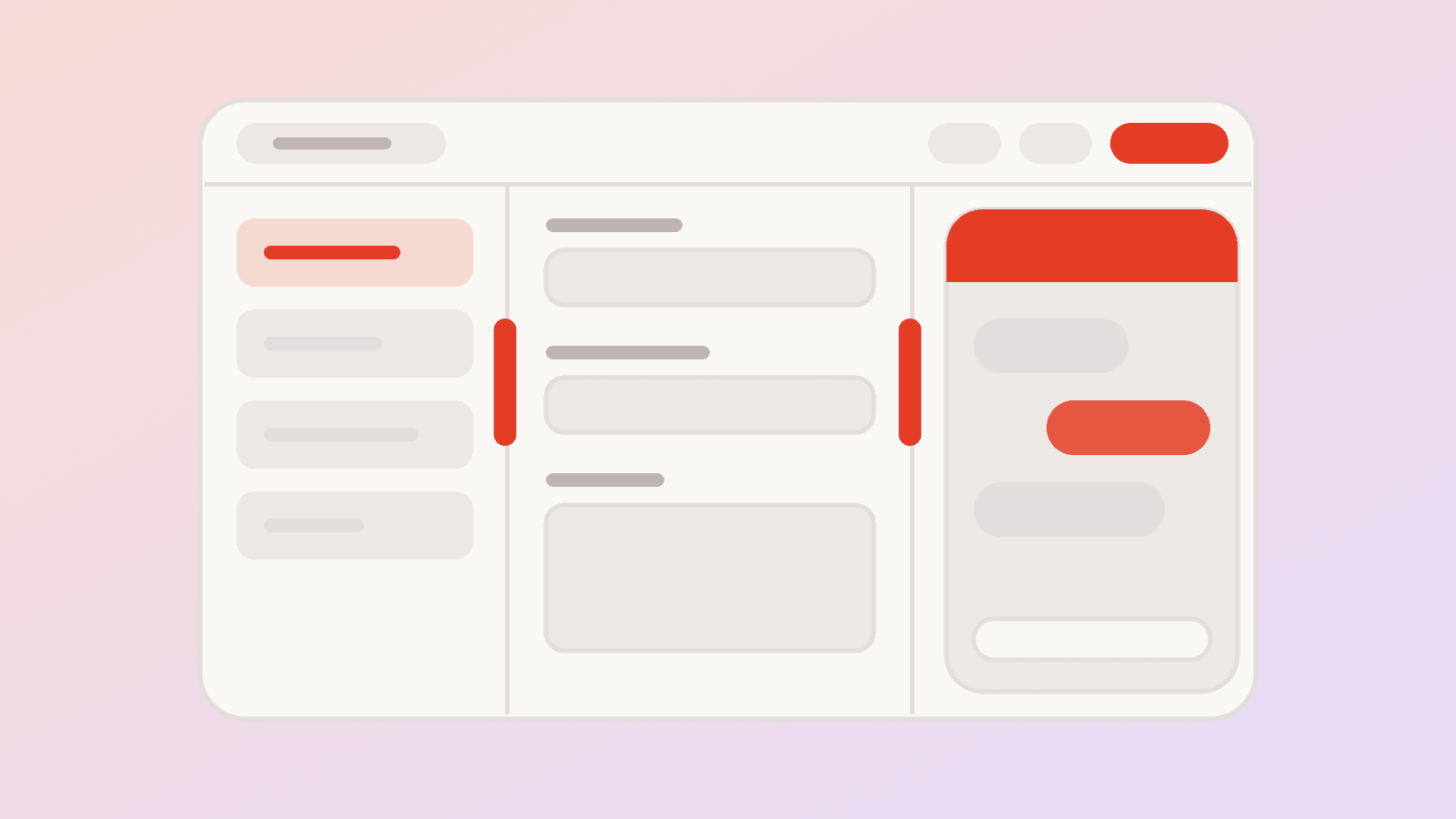
A redesigned Editor with resizable panes
New Flows and Integrations layouts, and panes you can drag to resize.
The Editor is where bots get built, and building means moving between many small screens. In the Rezonate Theme it fits more on one screen and keeps a live preview in view while you edit, and you can resize the panes to suit the job.
What's new#
Flows in one view#
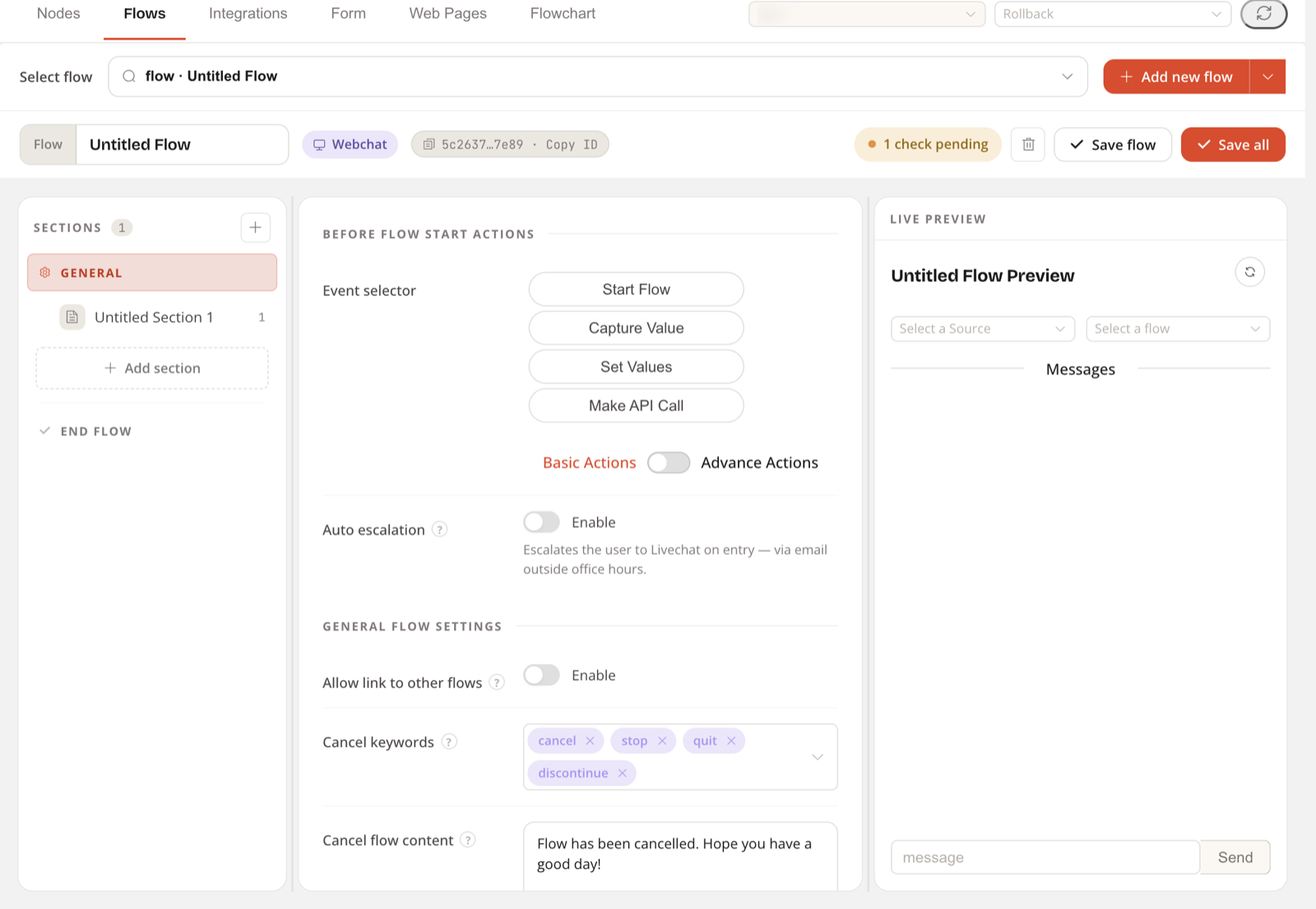
Choose a flow in "Select flow" at the top, or add a new one. The action bar shows the flow's name, its channel, its ID with a "Copy ID" button, and the Save flow and Save all buttons. Below it, the sections of the flow are listed on the left, the settings of the selected section sit in the middle, and a live preview is docked on the right, so you can test the flow beside the settings it comes from.
Know when a flow is ready#
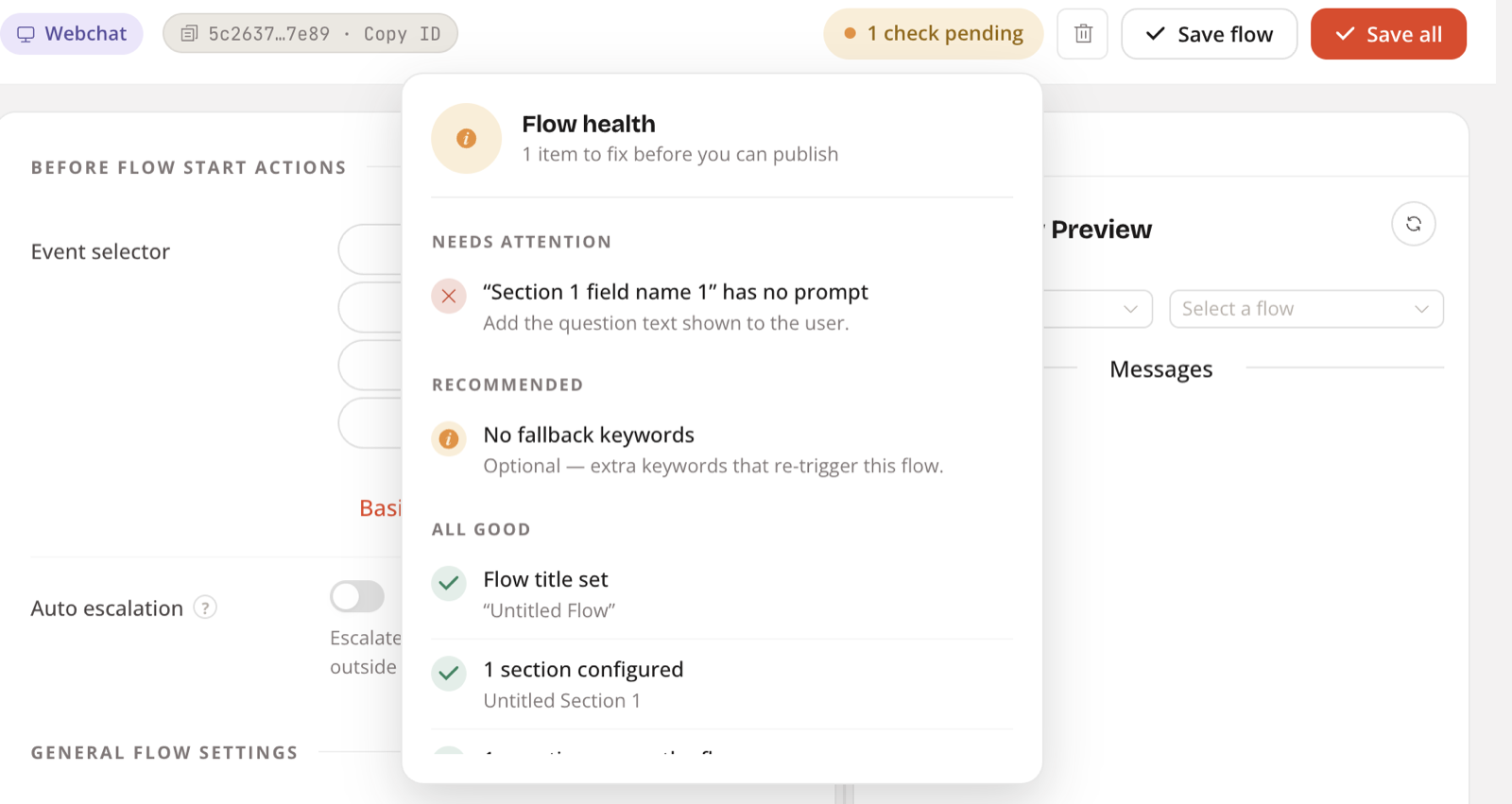
A chip next to the Save buttons reads "Ready to publish" or, for example, "1 check pending". Select it to open Flow health. "Needs attention" lists what to fix first, such as a question that has no prompt. "Recommended" lists optional improvements, such as fallback keywords. "All good" lists what is already in place.
A rebuilt question editor#
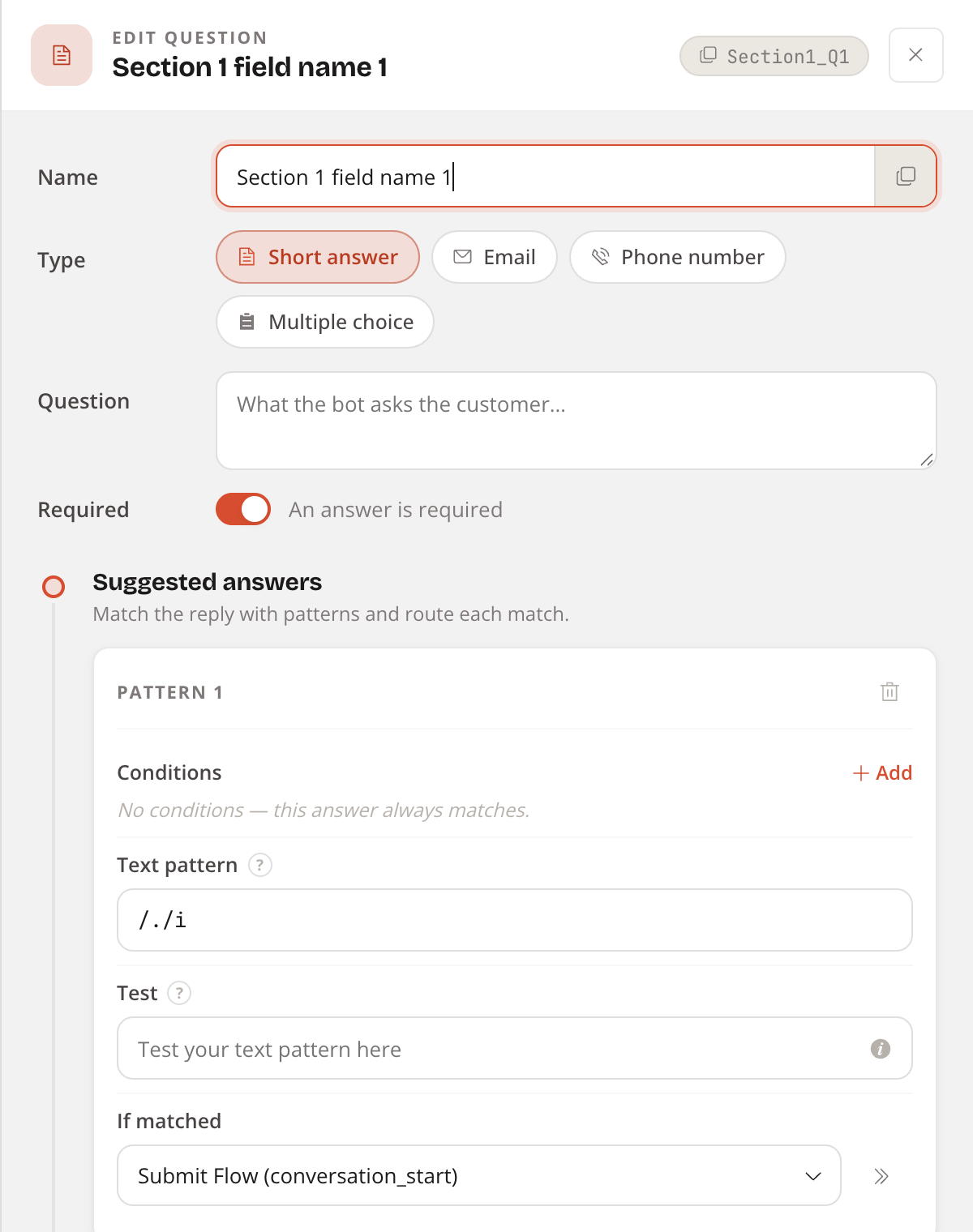
Select the pencil on a question and it opens in a drawer on the right, with the page still visible behind it. You set the name, the type (Short answer, Email, Phone number or Multiple choice), the question the bot asks and whether an answer is required. "Suggested answers" match the reply with patterns and route each match to what happens next. The drawer has Delete, Cancel and Save question.
Integrations organised like a request#
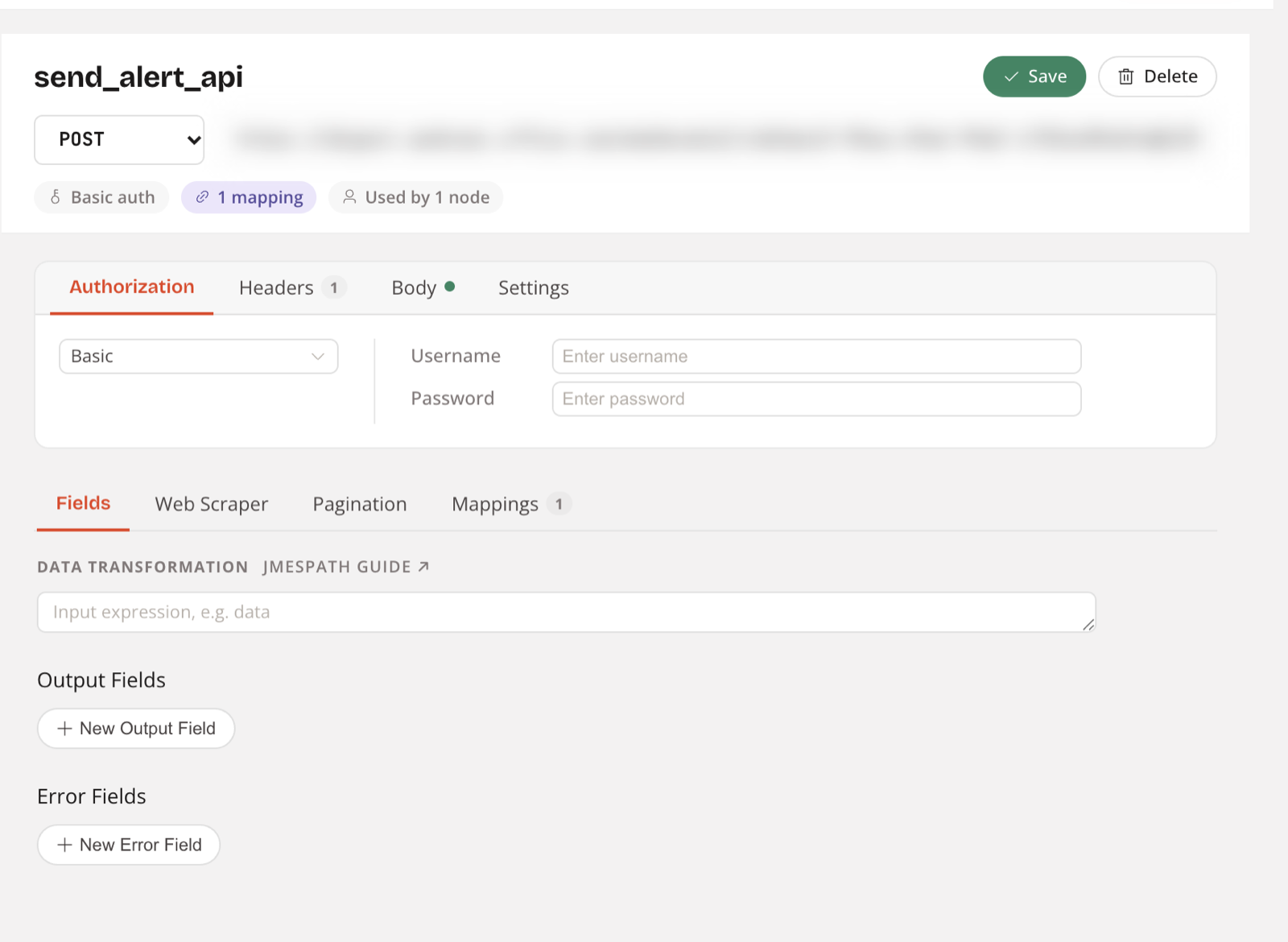
Each API shows its method and address, then two groups of tabs. The request group is Authorization, Headers, Body and Settings. The processing group is Fields, Web Scraper, Pagination and Mappings. Small chips show how the API signs in, how many mappings it has and how many nodes use it. A List and Map switch and a New API button sit at the top of the screen.
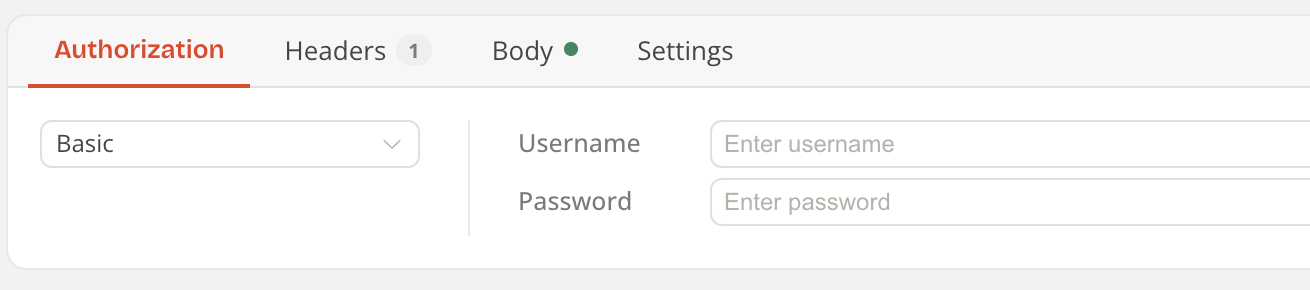
Authorization and Body both show the type on the left, such as Basic or application/json, and its details on the right.
Panes you can resize#
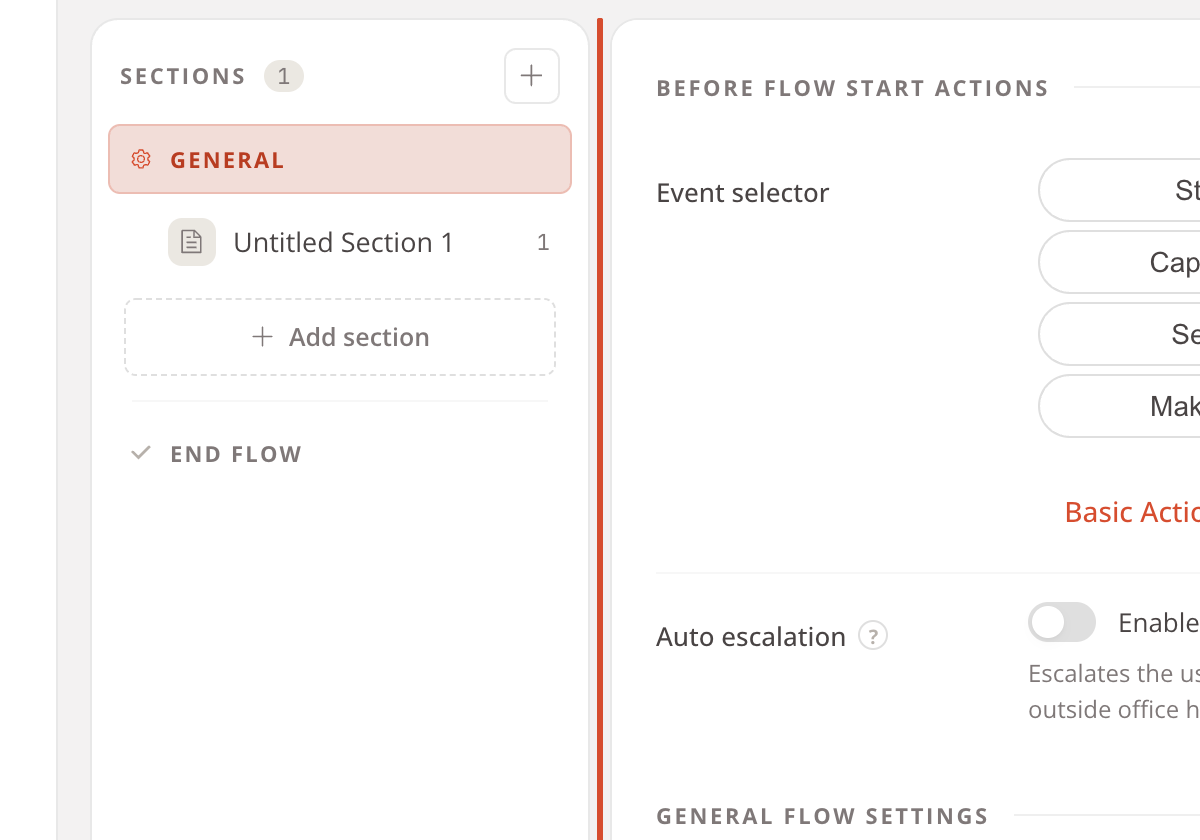
Hover a divider and it highlights. Drag it to resize, double-click it to reset, or select it and press the left or right arrow key (hold Shift for bigger steps). Dividers are in Nodes (the list and the details), Integrations (the API list), Flows (the Sections list and the live preview) and Form (the forms list). Your sizes are remembered in the browser you use.
How to use it#
- Open Editor, then Flows.
- Choose a flow and select a section. Edit its settings in the middle while the preview stays on the right.
- Select the pencil on a question, make your changes, and choose Save question, then Save flow.
- Select the health chip to see what is still pending.
- Open Integrations, choose an API and move between the request tabs and the processing tabs.
- Drag a divider to give a list or the preview more room.
Good to know#
- The new Editor layout is part of the Rezonate Theme. In Rezonate UI the Editor keeps its previous layout.
- Your existing flows and integrations open in the new layout as they are. Only the way you edit them has changed.
- WhatsApp flows use screens instead of sections, with the actions Save as draft and Publish.
- The Form editor has its own announcement: A form editor built for business users.
How to turn it on: Switch to the Rezonate Theme (Settings > System > "Theme Color"), then open Editor.