

Try the new Rezonate Theme
A new look with dark mode and a compact sidebar. Optional, switch any time.
Release 35 introduces the Rezonate Theme, a redesign of the whole dashboard. If you have ever lost a minute hunting for the right screen, or squinted at a bright display late in a shift, this is for you. The Theme is optional: the layout you use today keeps working (it is now called "Rezonate UI"), and you can switch to the Theme and back whenever you like.
What's new#
Navigation grouped by the job you are doing#
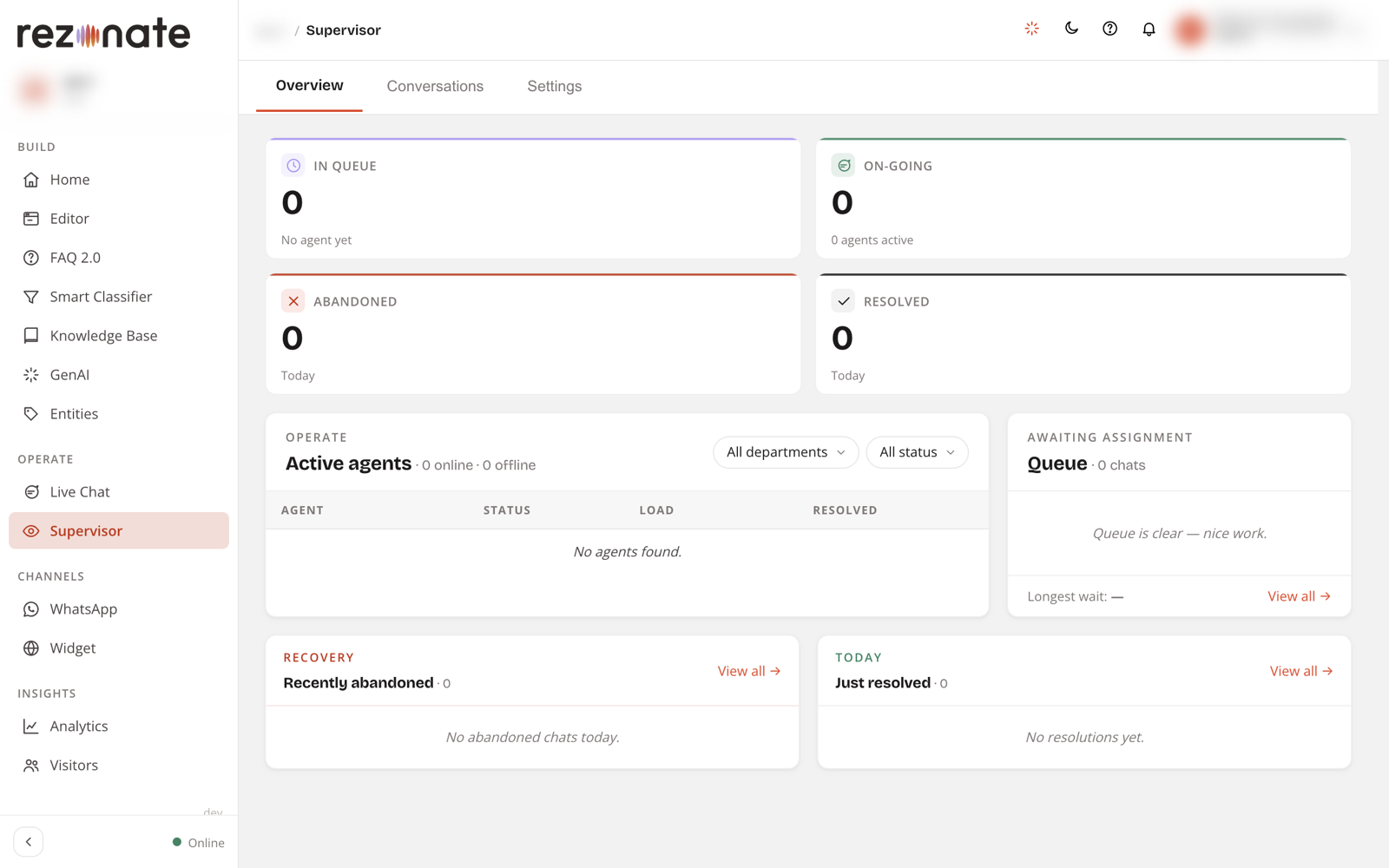
The sidebar groups screens under BUILD, OPERATE, CHANNELS, INSIGHTS and SYSTEM. A bot builder finds Editor, Knowledge Base and GenAI in one place, and a team lead finds Live Chat and Supervisor in another. The top bar shows where you are, with a light and dark switch, help, notifications and your account menu. Screens such as Supervisor use cards with large numbers, so a project manager can see how many chats are in the queue, ongoing, abandoned or resolved without opening anything.
Light or dark#
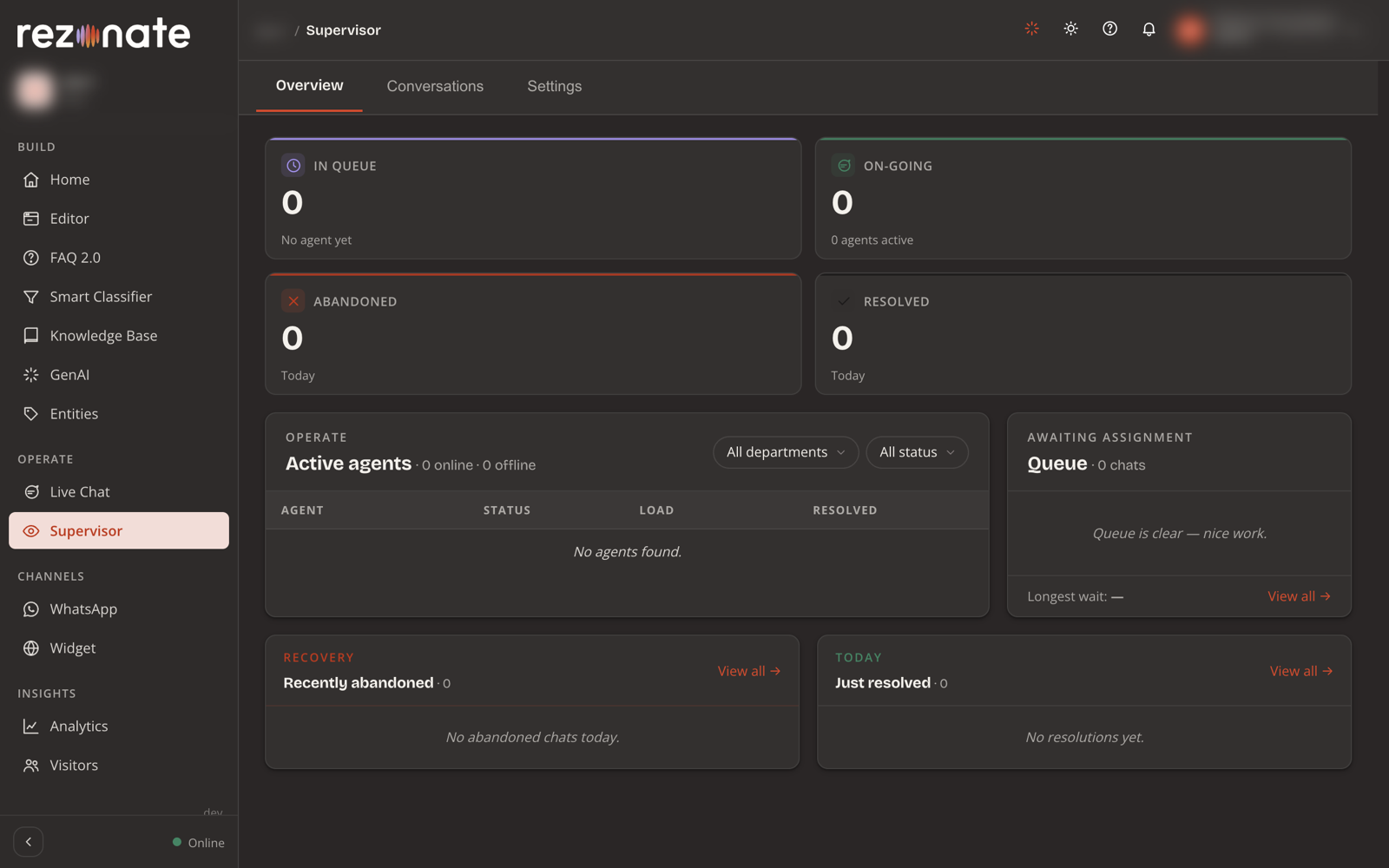
Dark mode is part of the Rezonate Theme. Switch with the moon icon in the top bar, or in the settings panel described below. Rezonate UI always stays light.
A sidebar that gets out of the way#
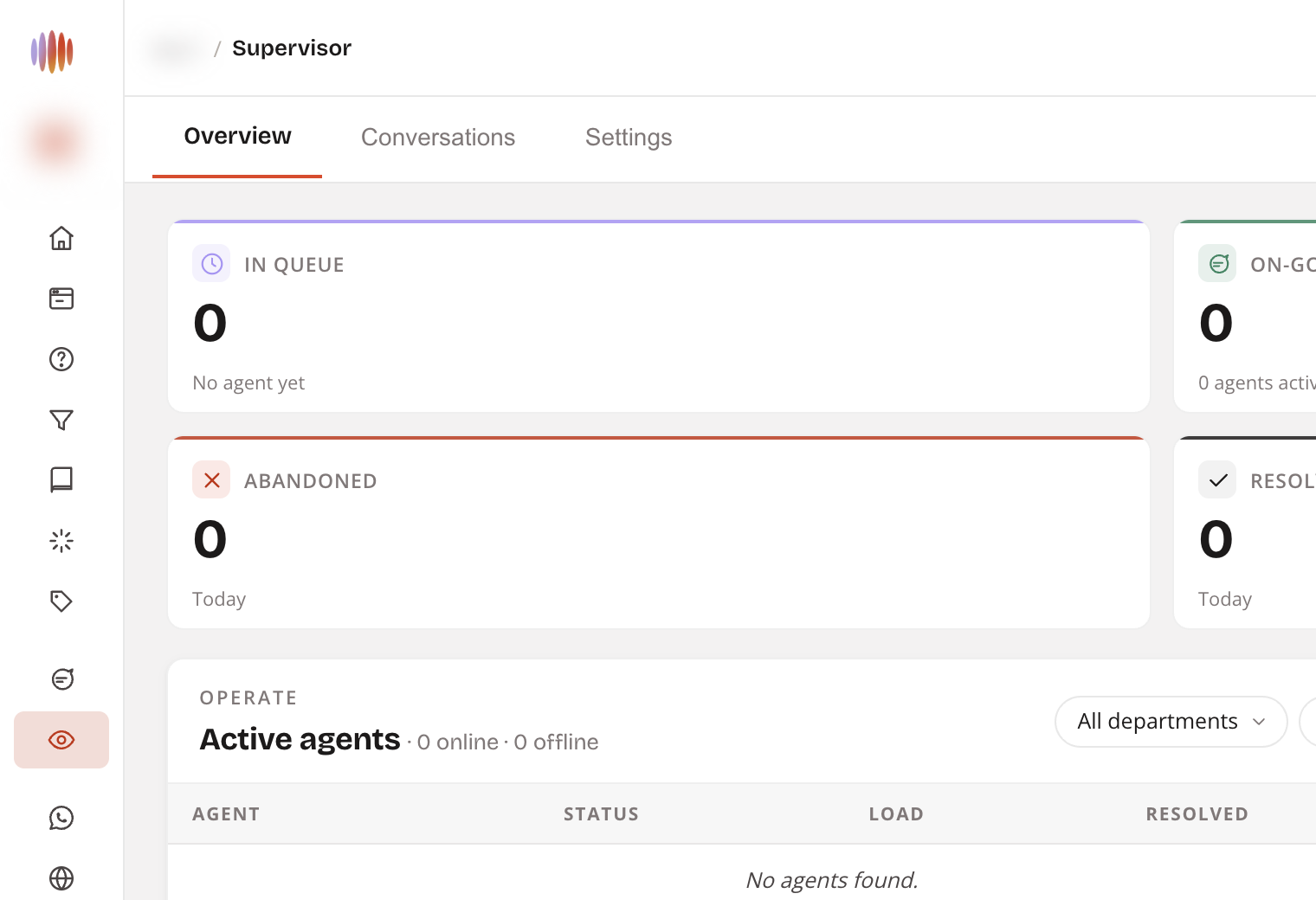
Choose "Compact" for the sidebar and it shrinks to icons, which leaves more room for flows, forms and conversations. "Expanded" keeps the labels.
How to use it#
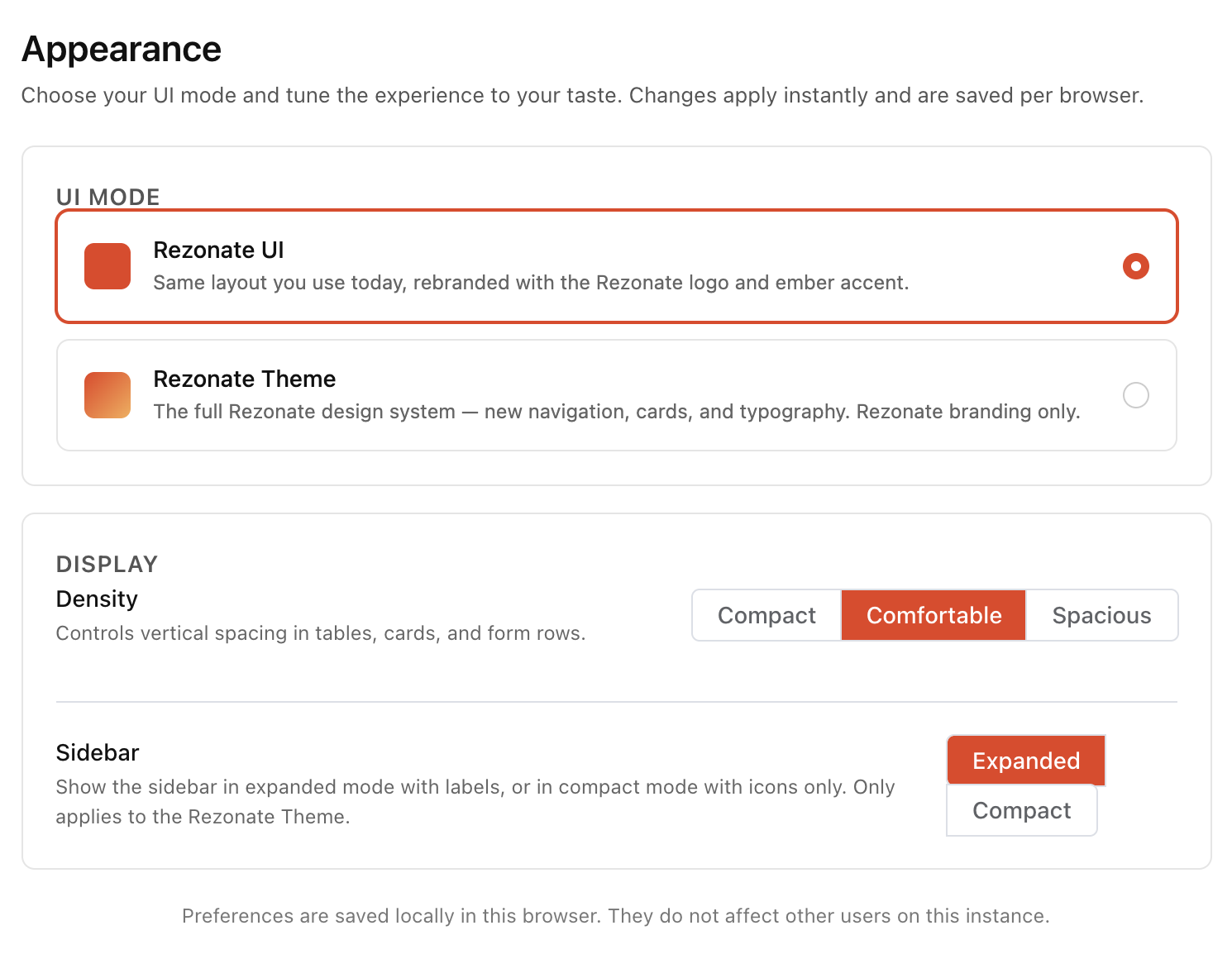
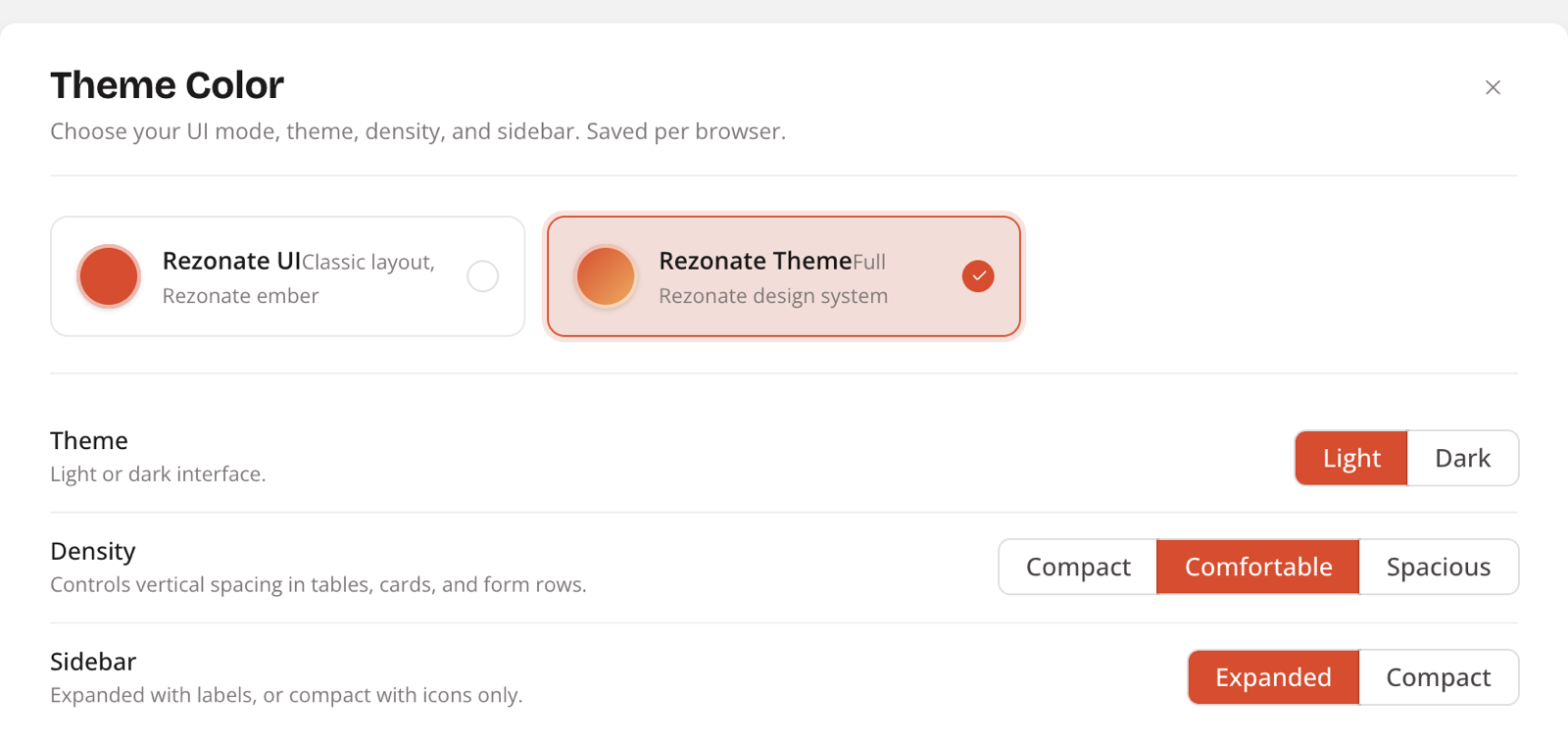
- Open Settings, then SYSTEM, then Theme Color. In Rezonate UI the panel is titled "Appearance".
- Under UI mode, choose Rezonate Theme. The dashboard changes straight away.
- In the Theme, choose Light or Dark, and Expanded or Compact for the sidebar.
- To go back, choose Rezonate UI in the same panel, or select the sparkle button in the top bar ("Switch back to Classic design"). In Rezonate UI you can also select Try Beta Theme at the bottom of the side menu.
Good to know#
- The Theme is optional. A browser that has never chosen starts in Rezonate UI.
- Your choice is saved in the browser you use and does not affect your colleagues.
- Some screens exist only in the Theme: Live Chat, the Flows, Integrations and Form screens of the Editor, and the Widget page. Each has its own announcement: Live Chat, Editor, Form editor and Web widget. The Flowchart and Cmd+K search work in both modes.
- The same panel has a Density setting (Compact, Comfortable, Spacious). In this release its effect is small.
- The Rezonate Theme uses Rezonate branding only.
How to turn it on: Settings > System > "Theme Color", then choose "Rezonate Theme". Your choice is saved in the browser you use.