Meet Release 35: faster teams, smarter bots, happier customers
Our biggest release ever: a stunning new look, a Live Chat agents will love, forms without developers and your whole bot on one map.
Picture your team's next Monday morning. Your agents open Live Chat and see every conversation, where it came from and who handled it, without a single pop-up. Your bot builder spots a broken link before any customer hits it. Your marketing lead launches a new registration form before lunch, with no developer ticket. And anyone can find any step in the bot in two seconds flat.
That is Release 35. It is the biggest update we have ever shipped, and it reaches every part of the day: how you build, how you serve customers and how you see what is going on.
Here are the seven upgrades that make it happen.
The highlights#
- A stunning new look with dark mode, built around the way your team works.
- A Live Chat agents will love, with everything they need on one screen.
- Build and test side by side, with a live preview always in view.
- Forms without developers, from the first question to the Excel export.
- Your whole bot on one map, with broken links flagged for you.
- Cmd+K to find anything in your bot in seconds.
- A chat widget for every website, styled with a live preview.
1. A stunning new look, built around your day#
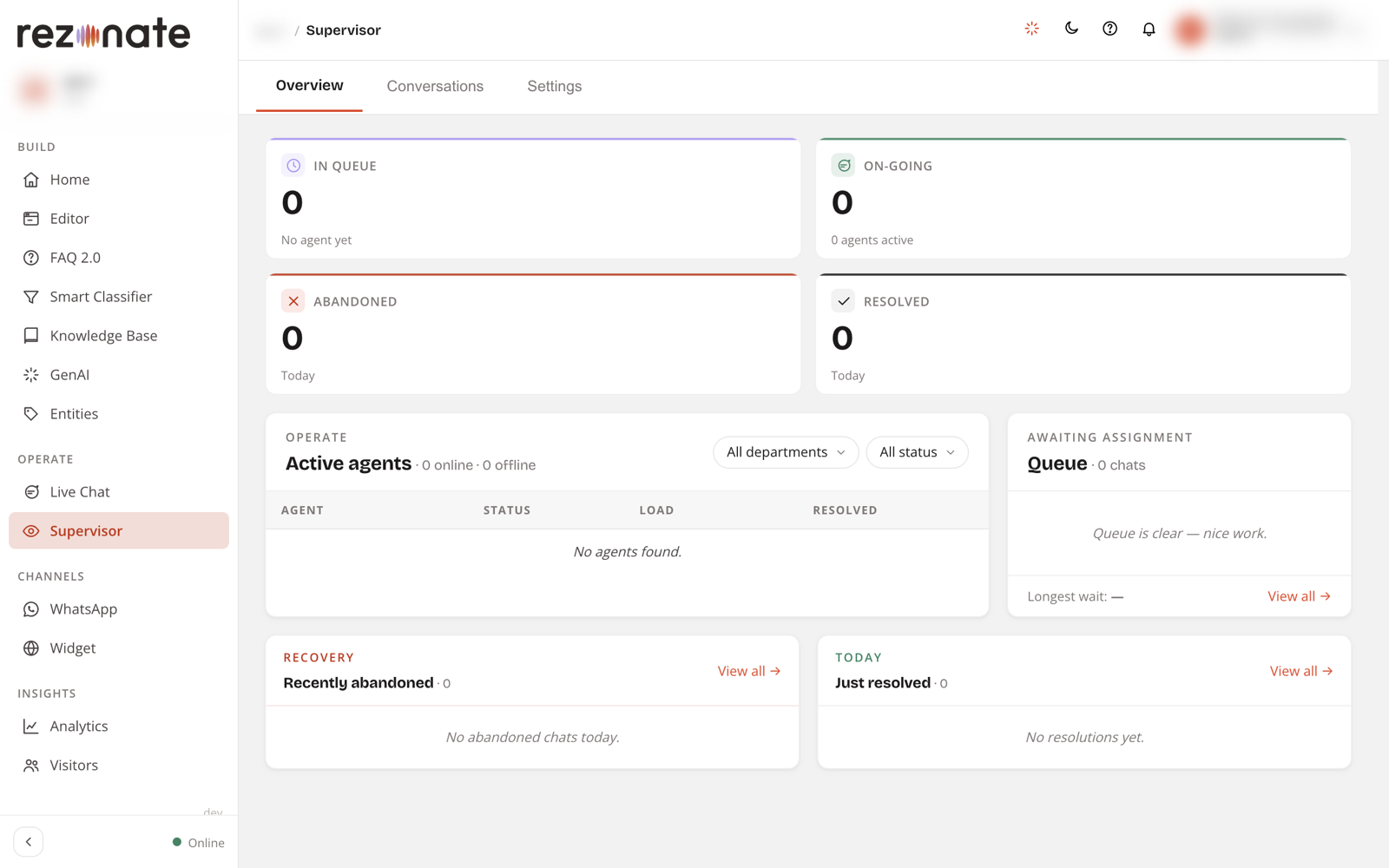
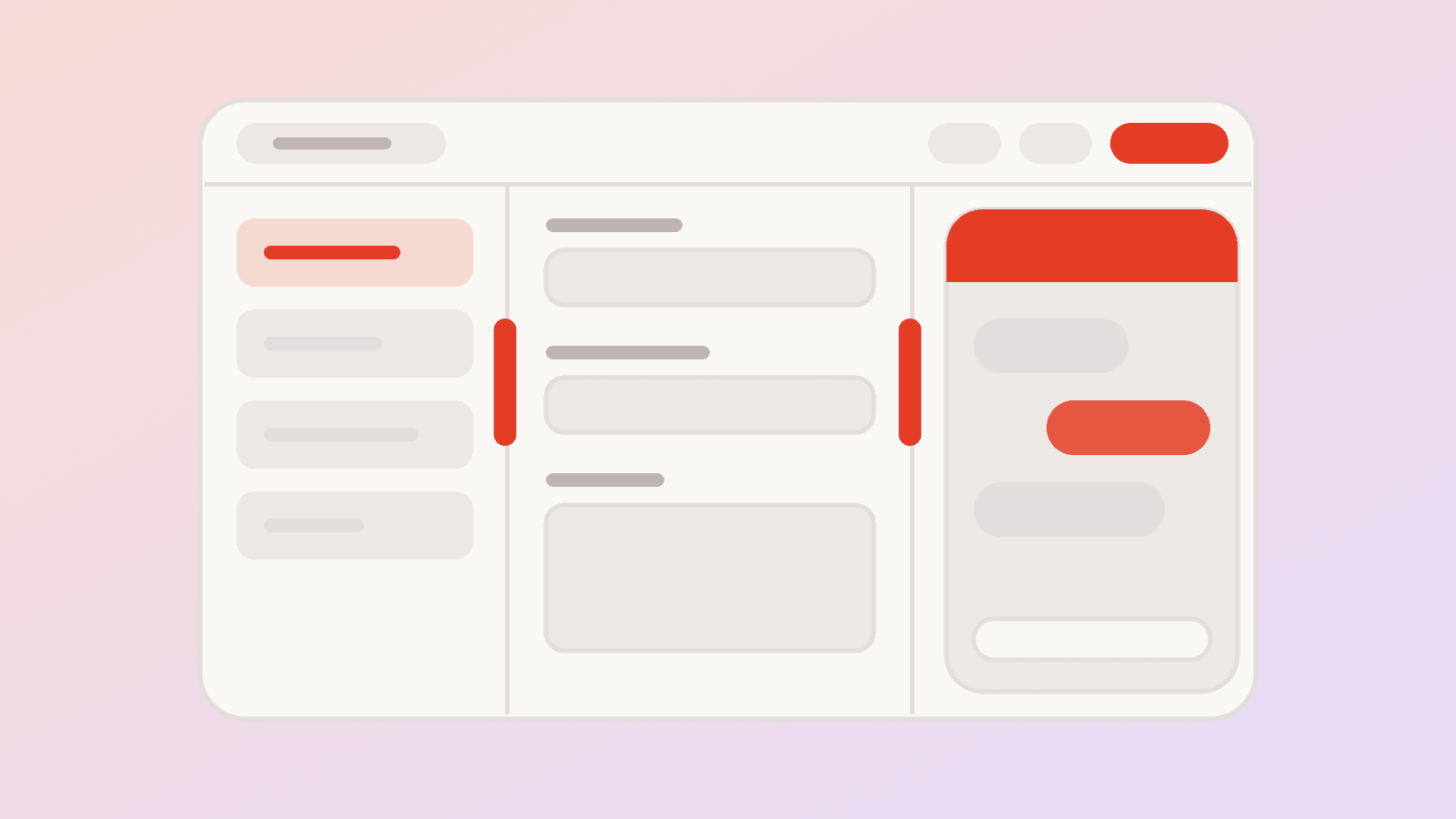
First impressions matter, including the one your own team gets every morning. The new Rezonate Theme redesigns the whole dashboard around the jobs people actually do. Builders find their tools under Build. Team leads find Live Chat and Supervisor under Operate. Key numbers, from chats waiting in the queue to chats resolved today, sit on big, clear cards that a manager reads at a glance.
Prefer a darker screen for the late shift? One click turns on dark mode. Want more room for your work? Fold the sidebar down to icons.
And there is no big-bang switchover. Each person turns the Theme on when they are ready, and can switch back at any time. Take the tour of the Rezonate Theme.
2. A Live Chat your agents will love#
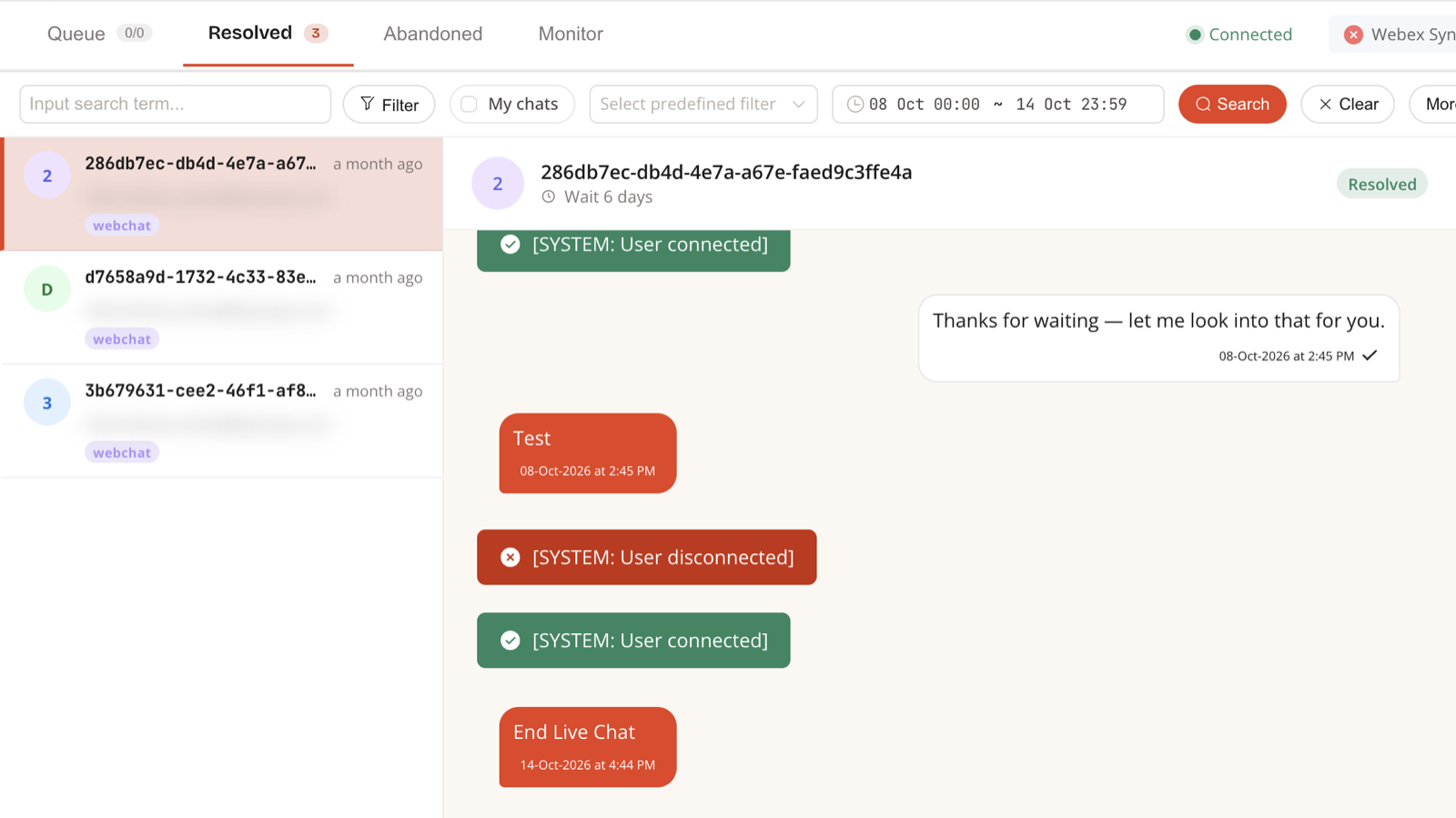
Agents live in Live Chat, so every wasted click costs you response time. The new Live Chat puts the whole story in front of them. The list shows where each chat came from, who handled it and when it was last active. Customer and agent messages are clear at a glance, and connects and disconnects stand out. Tags and the customer profile sit right beside the conversation, not in pop-up windows. Need last week's chat? A few filters bring it back. On a laptop? The side panels fold away and the conversation gets the space.
Less hunting. Faster answers. Happier customers. See the new Live Chat.
3. Build it, test it, ship it, on one screen#
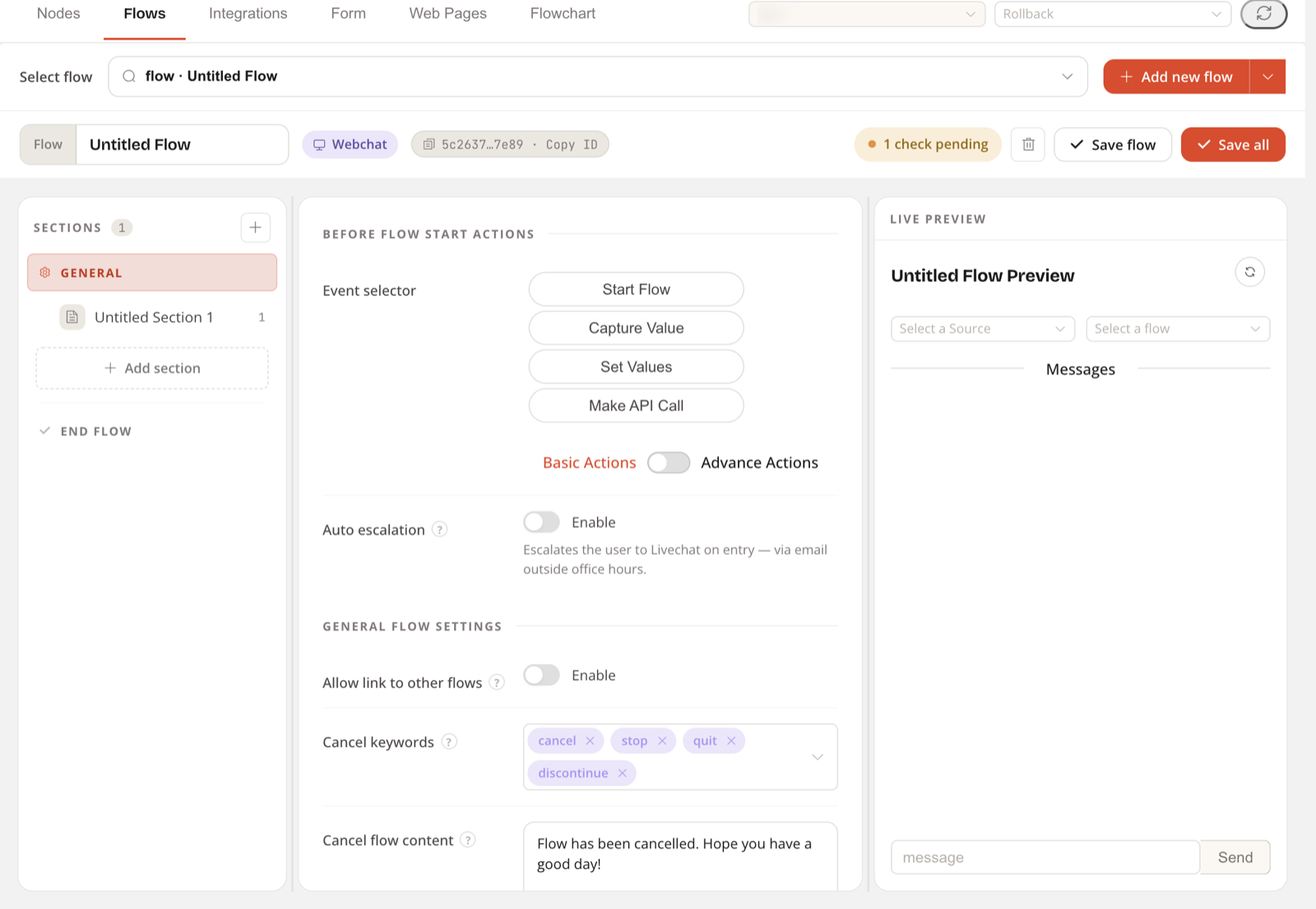
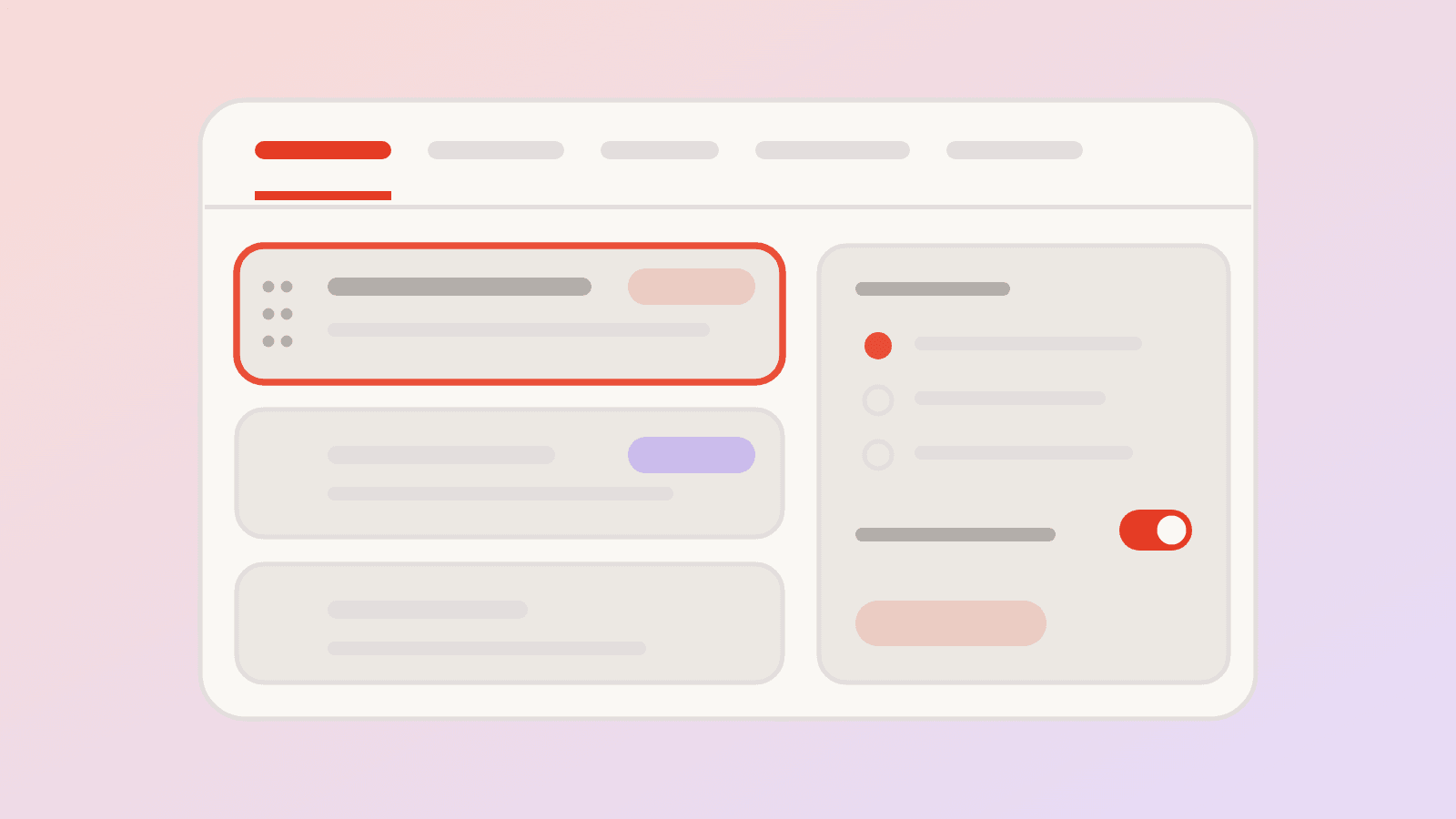
Building a great bot used to mean jumping between screens. Now a flow's sections, its settings and a live preview sit side by side. Change a setting, test it straight away, move on. A built-in health check tells you when a flow is "Ready to publish", or exactly what still needs attention, so nothing half-finished reaches a customer. Integrations are organised into clear tabs, and every pane resizes to fit the job in front of you.
Faster launches, and safer ones too. Explore the new Editor.
4. Forms without the developer queue#
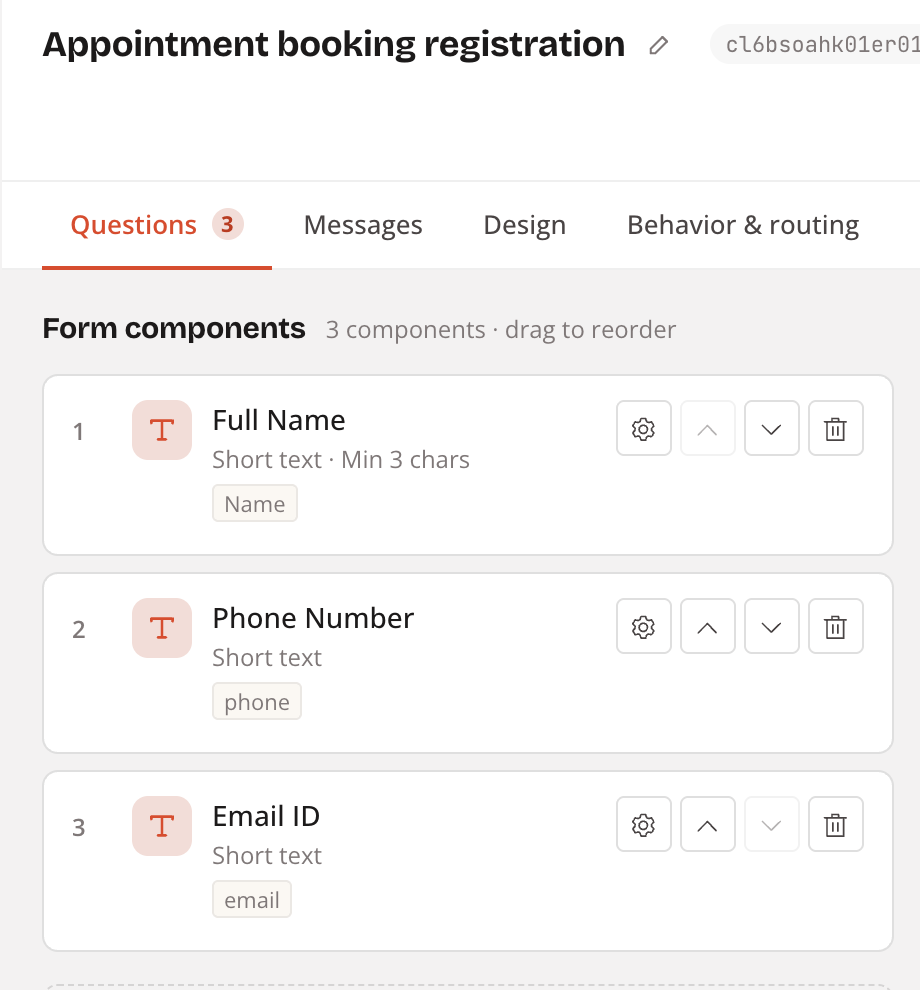
Appointment requests, registrations, feedback: forms are where conversations turn into business. Now your business team builds them on their own. Choose from twelve question types, from short text and email to ratings and file uploads. Add simple rules such as "required" or "at least 3 characters". Write the welcome and thank-you messages in your own voice, match your brand colours and font, and decide where the conversation goes once the form is sent. Every change is listed before you save, so nothing goes live by accident.
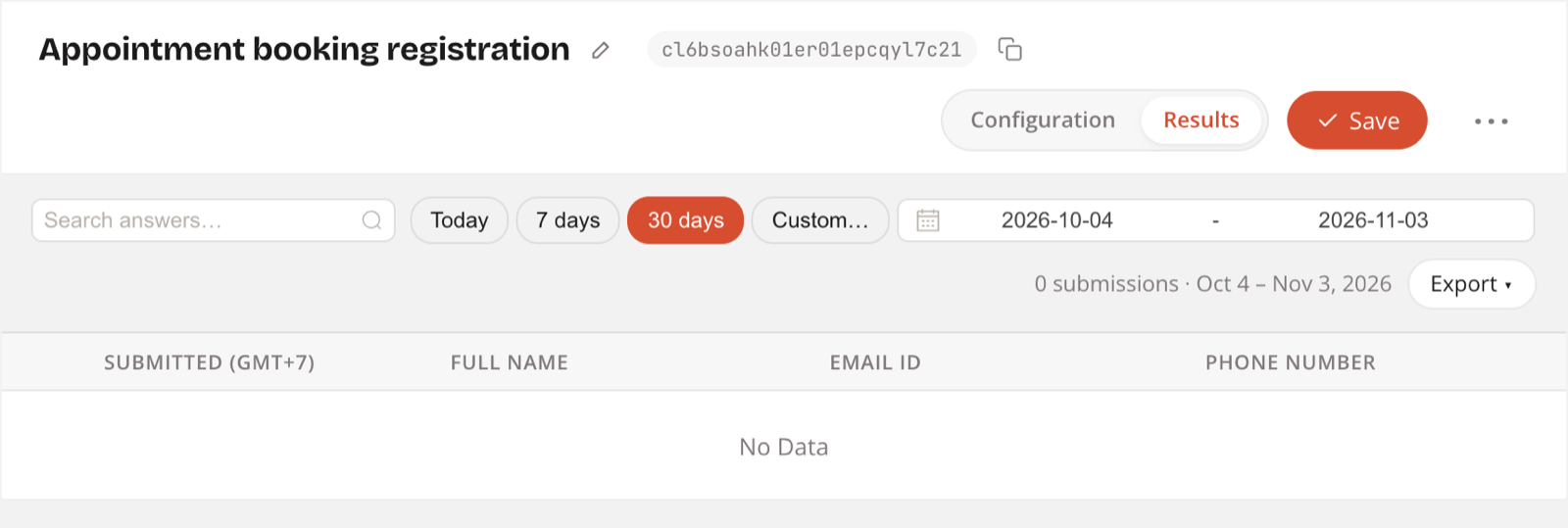
When the answers come in, they are one click away, with date shortcuts and an Excel export ready for your next report. Meet the new Form editor.
5. See your whole bot on one map#
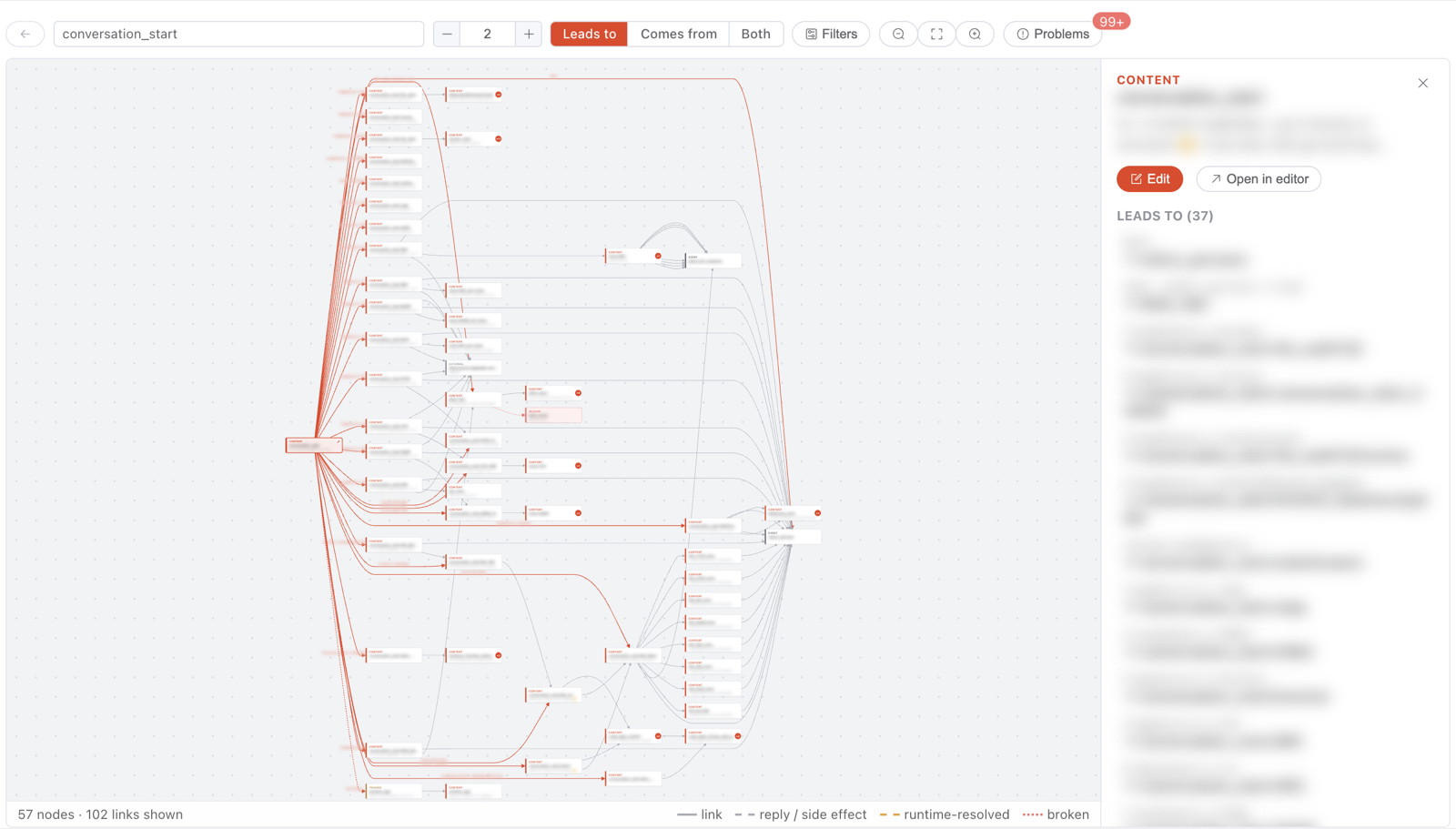
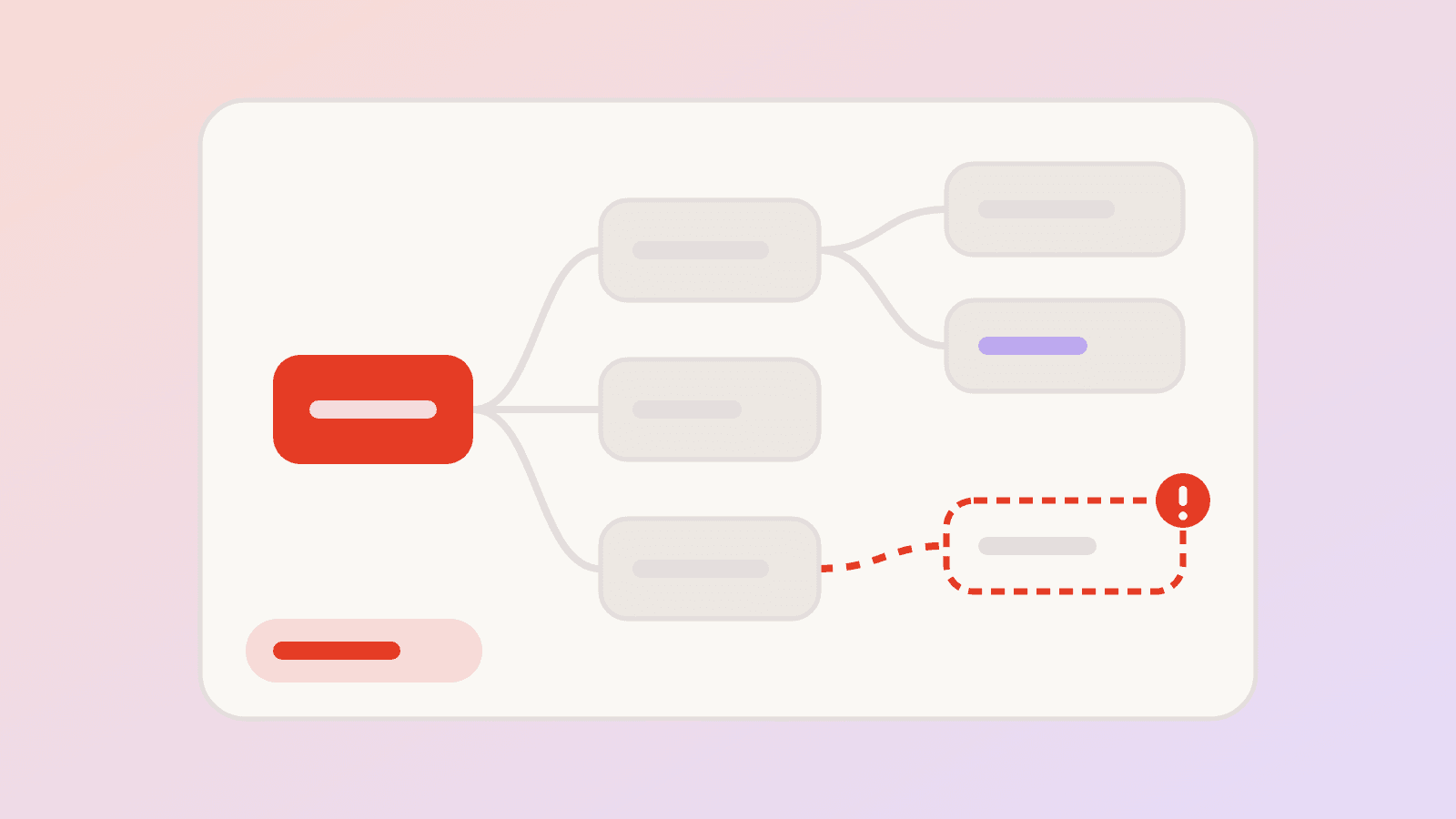
How does a customer get from "Hi" to "Thank you"? Until now, the answer was spread across dozens of screens. The new Flowchart draws your bot as a map of steps and the paths between them. A built-in Problems list flags links that lead nowhere and content that nothing points to, so you fix dead ends before a customer finds them. Spot something? Select the step and edit it on the spot. Want a second opinion? Send the link, and a teammate sees exactly the same view.
Peace of mind for every launch. Discover the Flowchart.
6. Find anything in seconds with Cmd+K#
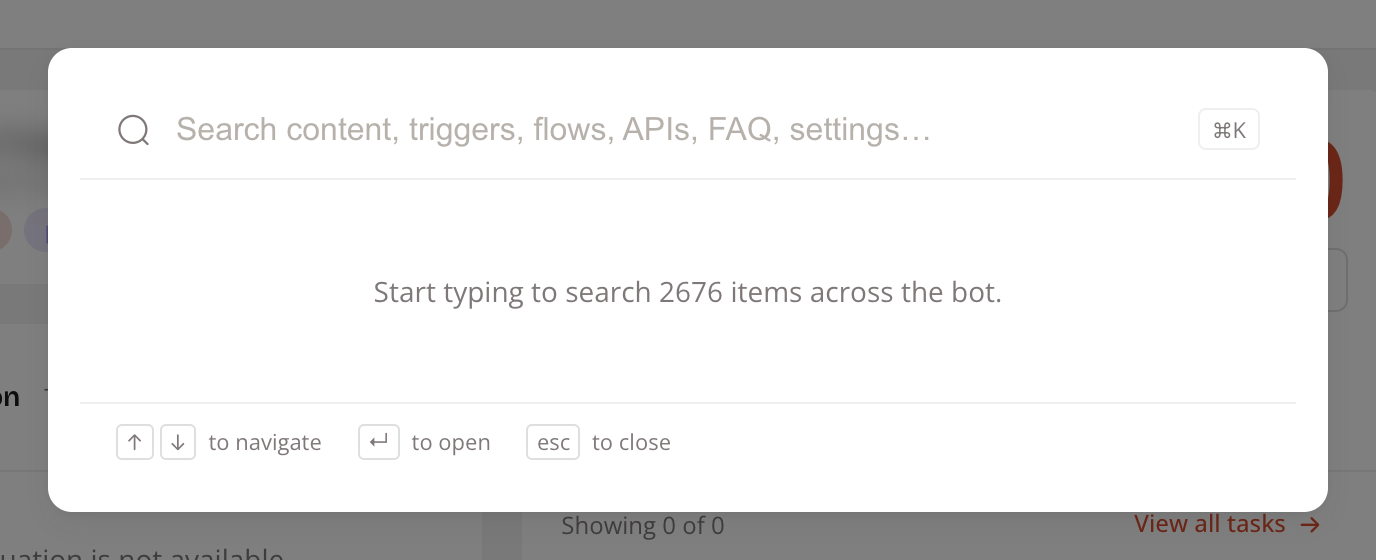
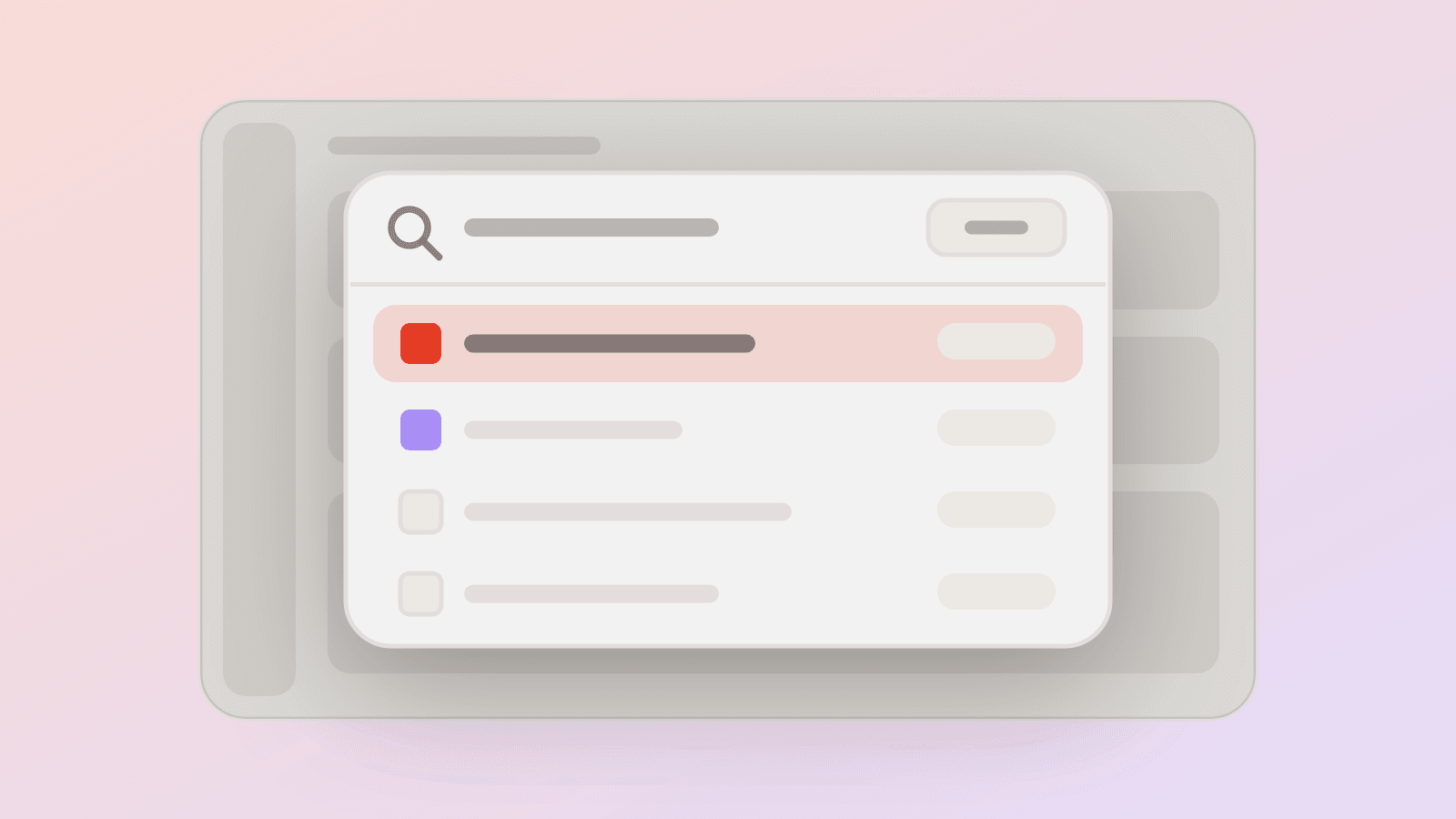
Your bot grows every month. Finding things should not get harder. Press Cmd+K on a Mac or Ctrl+K on Windows, from any screen, and start typing. One search box covers content, triggers, flows, integrations, forms, settings and more. Pick a result and you land right on it.
No more digging through menus for the step you built six months ago. Try Cmd+K search.
7. A chat widget for every website#
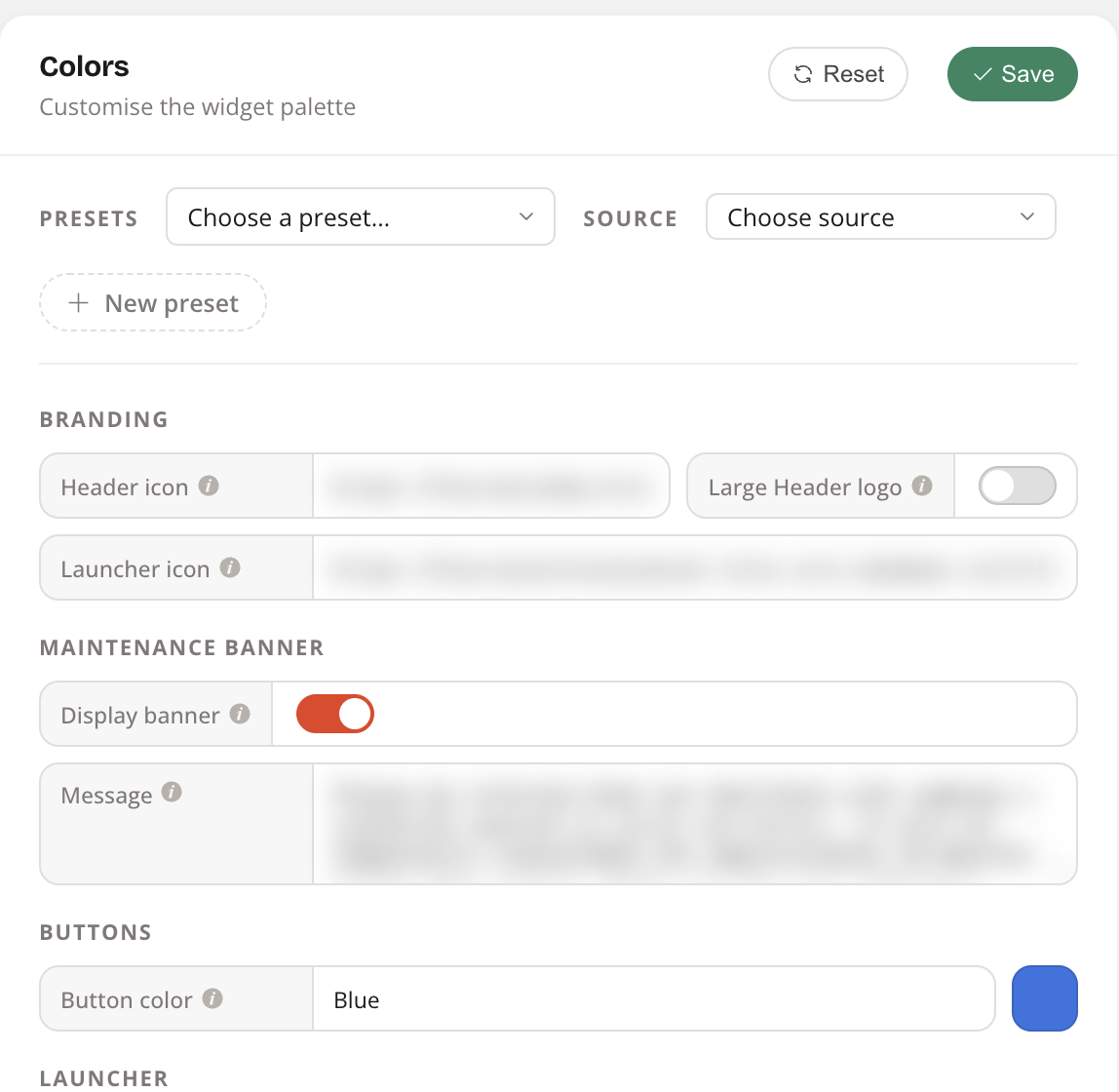
Your chat widget is often the very first thing a customer sees, so it has to look just right. The redesigned Widget page shows the real widget in a live preview while you change colours, icons and the maintenance banner, so you see the result before your visitors do. Running several websites? Create a preset for each one, each with its own look. The embed code stays short and does not change when you change a colour, so your web team installs it once and you take it from there.
Why Release 35 is worth it#
- Your team gets faster: fewer clicks, less searching, more done every day.
- Your launches get safer: health checks, a problems list and a review of every change catch issues early.
- Your business team gets independent: forms and widget styling without waiting on developers.
- Your customers notice: quicker replies, fewer dead ends and a chat that looks like your brand.
- Nothing gets lost: your flows, forms, chats and results carry over as they are. The new Theme is opt-in, and the Flowchart and Cmd+K search work from day one.
Ready when you are#
Once your workspace is on Release 35, open Settings > System > Theme Color and choose Rezonate Theme to unlock the new Live Chat, Editor, Form editor and Widget page. The Flowchart and Cmd+K search work in both looks, with nothing to switch on.
The best way to see it is to try it. Contact your KeyReply account team to plan your upgrade, then explore every feature in detail below.